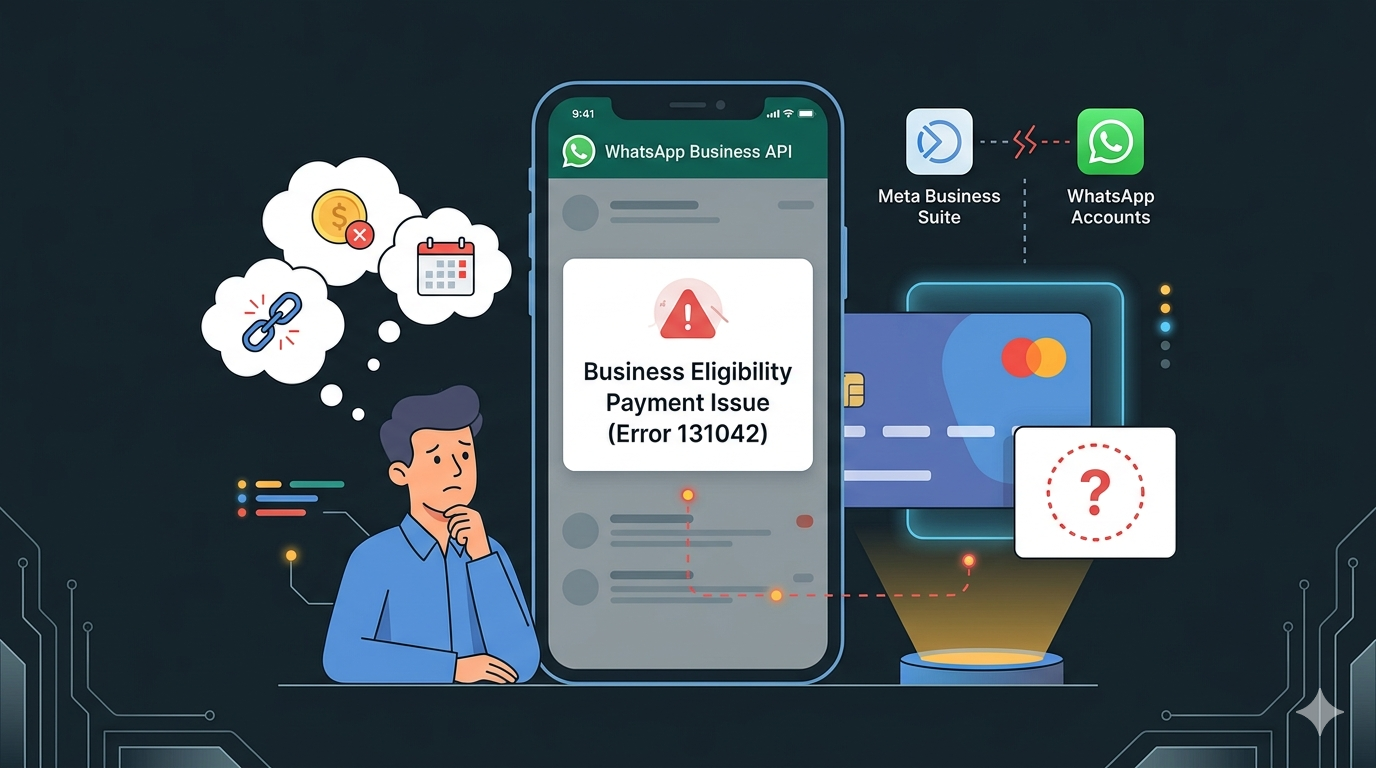

How to Fix “Business Eligibility Payment Issue” in WhatsApp Business API (Error 131042)
If you are using the WhatsApp Business API for your customer outreach, encountering a “Business Eligibility Payment Issue” can bring your entire operation to a halt. This error often associated with Meta Error Code 131042 typically triggers when the system attempts to send a message but cannot find a valid payment method to cover the conversation-based fees.
While it sounds like a complex policy issue, the root cause is almost always technical: your credit card is either missing, expired, or hasn’t been correctly mapped to your specific WhatsApp account.
Why Am I Seeing the Business Eligibility Payment Issue?
Meta categorizes conversations into four tiers (Marketing, Utility, Authentication, and Service). To send any message that falls outside the free tier, your account must be “eligible” for billing.
Common reasons for this error include:
-
Unlinked Payment Method: You added a card to your Meta Business Suite, but didn’t assign it to the WhatsApp Business Account (WABA).
-
International Restrictions: Your bank is blocking the transaction because international payments aren’t enabled.
-
Authentication Failure: The card failed Meta’s temporary authorization hold.
Step-by-Step Fix: Resolving Error 131042
To clear this error and resume messaging, follow these steps:
-
Access Meta Business Suite: Go to your Business Settings.
-
Check WhatsApp Accounts: Navigate to Assets > WhatsApp Accounts and select your specific business name > Billings
-
Open Settings: Click on the “Settings” tab and look for the Payment Settings section.
-
Assign Payment Method: This is the most crucial step. Even if your card is listed in the “Payments” tab of the Business Manager, you must specifically ensure it is selected for this WABA.
Need a visual guide?If you are unsure which menu to click, follow our detailed walkthrough on to ensure your billing is configured correctly.
Read here to learn how to add credit card how to add a credit card to your WhatsApp Business account
Frequently Asked Questions (FAQs)
Q: Why do I see this issue even after adding a card? A: Meta requires the card to be linked specifically to the WhatsApp Account level. Simply adding a card to the “Business Suite” isn’t enough; you must verify it is the “Active” payment method for your WhatsApp API.
Q: Does the WhatsApp Business API support debit cards? A: Meta prefers credit cards for recurring API billing. Some debit cards work if they support international recurring transactions, but credit cards have a much higher success rate for avoiding Error 131042.
Q: How long does it take for the error to disappear? A: Once the card is correctly added, the error usually clears instantly. However, in some cases, it may take up to 24 hours for Meta’s eligibility status to refresh.
Q: My card is active but still getting the error. What else could it be? A: Check if you have a “temporary hold” from Meta on your bank statement. If Meta couldn’t successfully charge a small verification amount (usually $1), the account will remain “ineligible.”