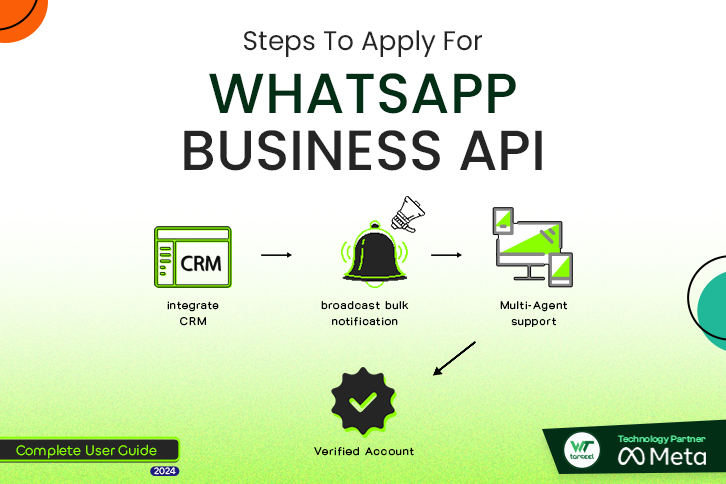
To be able to make complete use of and maximize WhatsApp for your Business, such as Whatsapp Broadcasting and other advanced features, you must obtain the WhatsApp business platform (previously known as WhatsApp business API). For this, the primary step is to apply for the WhatsApp business platform through Wetarseel. To make the process simple, here is a comprehensive guide that ensures your application is successful and your business set for growth.
Prerequisites to Apply for WhatsApp Business API
Make sure you fulfill the below conditions before applying for WhatsApp business platform with Wetarseel:
1- A Business Website
A business website is very fundamental for getting a WhatsApp business platform. This is crucial because it proves the legitimacy of the business.
2- An Unused Phone Number
You will need a valid phone number that is not registered with any existing WhatsApp account. Alternatively, if you wish to take an old number, it must be entirely dissociated from any active WhatsApp account. If required, you need to remove the existing WhatsApp account on that number permanently.
With these prerequisites in place, you can apply for WhatsApp Business API with Wetarseel.
Step-by-Step Guide to Apply for WhatsApp Business API
Follow these simple steps to apply for WhatsApp business platform with Wetarseel and get started with advanced business communication.
Follow these steps to apply for your WhatsApp business platform with Wetarseel and start advanced business communication with Whatsapp.
Step 1: Sign Up on Wetarseel
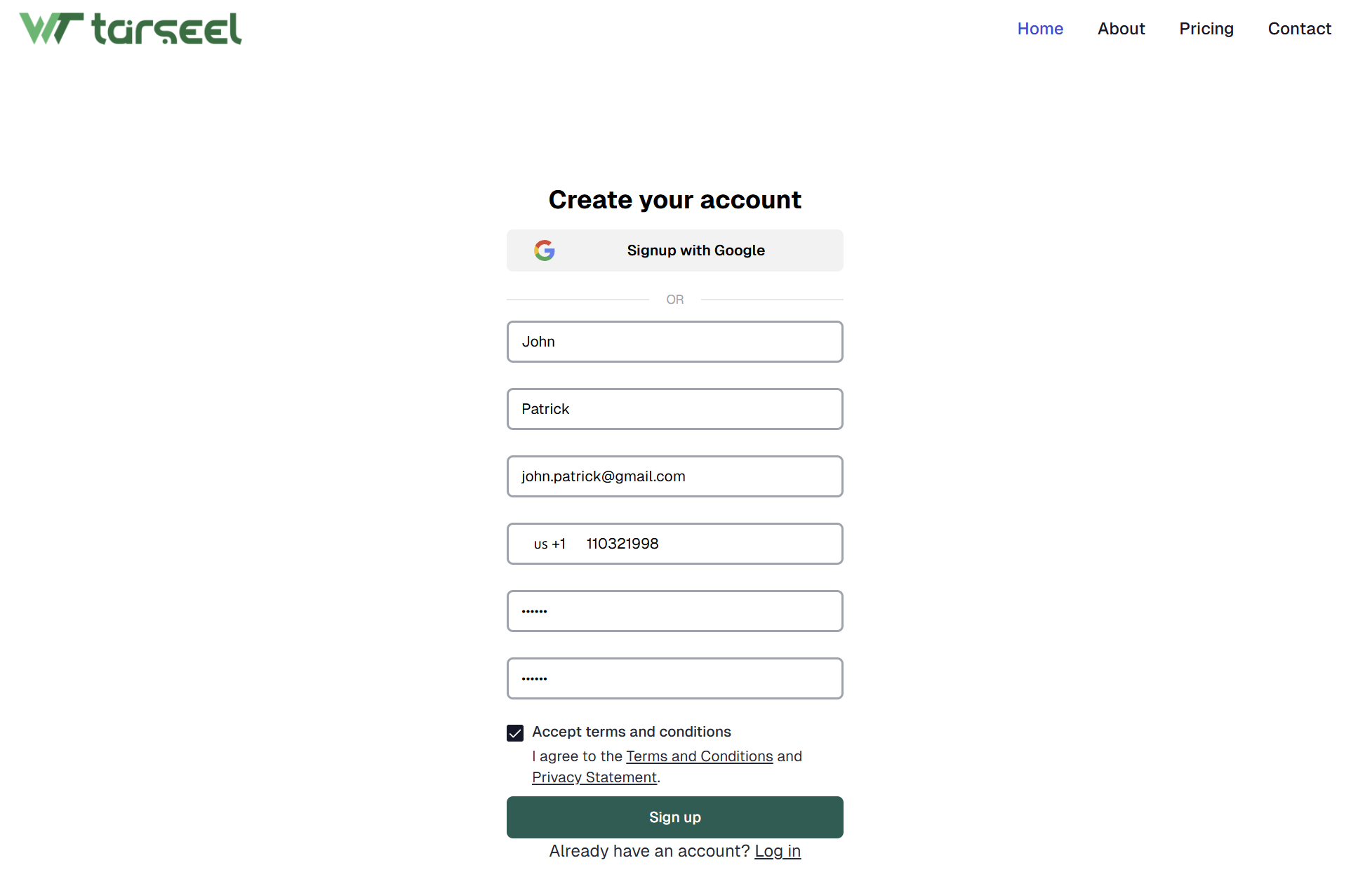
Go to the wetarseel Signup Page by clicking here.
You can sign up using your Google account, or if you prefer, you can complete the registration form using your business email.
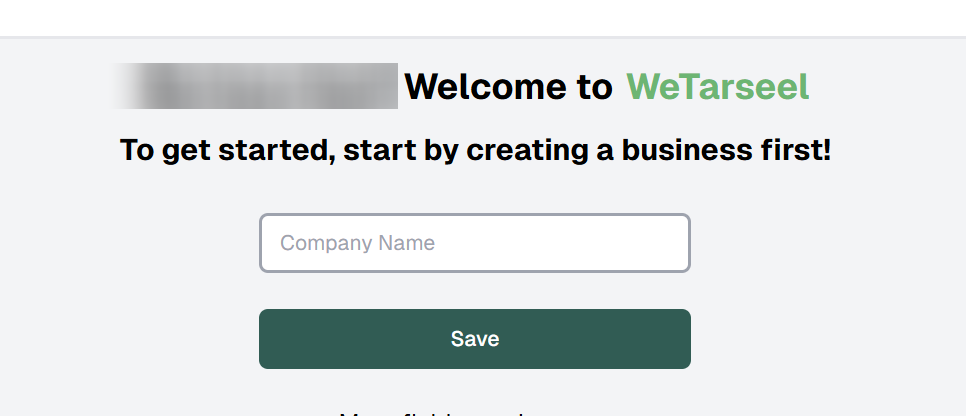
Step 2: Add Your Company Business Name
After signing up, enter your Business Name and click on Save to proceed.
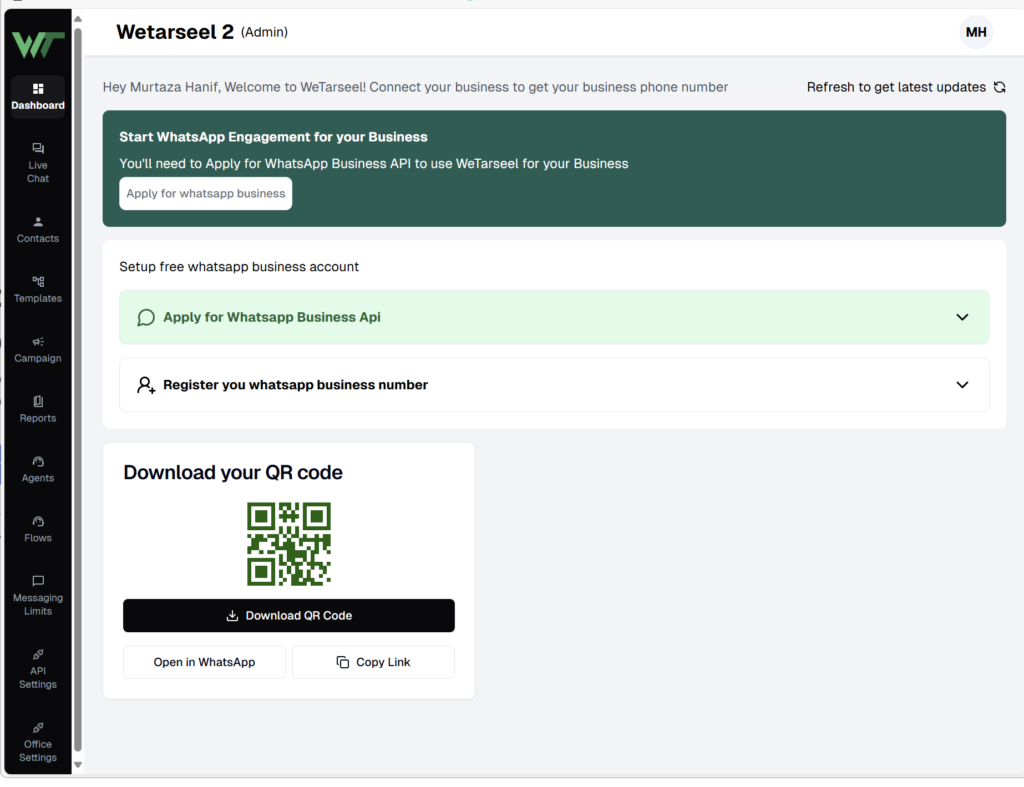
You will then be directed to your Dashboard, where you can manage your account settings.
Step 3: Update Your Business Profile
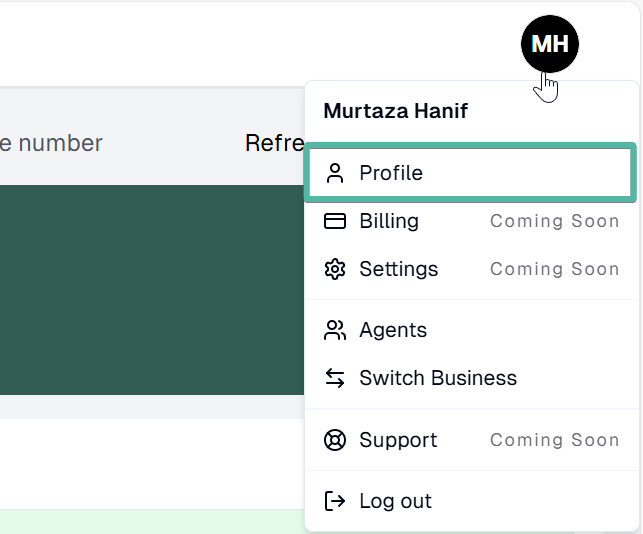
Go to your profile and enter essential business details, such as:
- Billing Currency & Time Zone
- Business Logo & Profile Logo
These details help Wetarseel customize your experience for better business management.
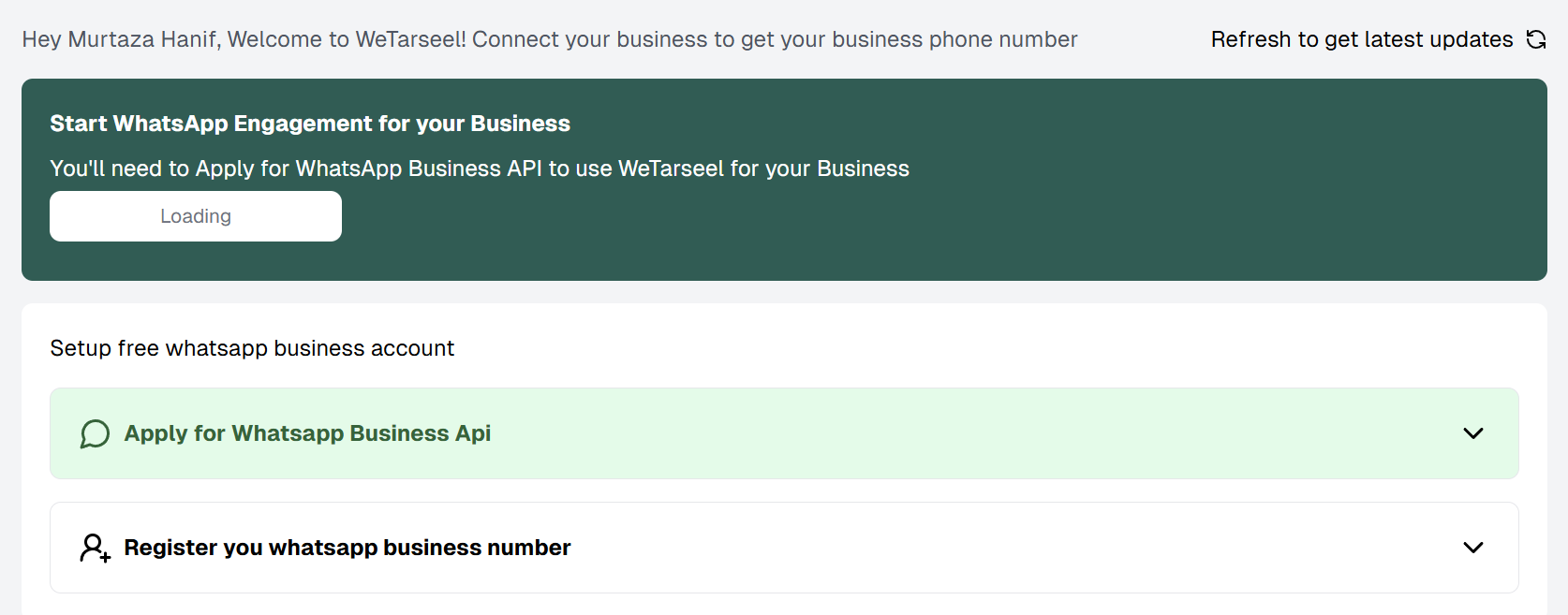
Step 4: Apply for WhatsApp Business API
In your Dashboard, click on the “Apply for WhatsApp Business” button to initiate the application for the WhatsApp business platform.
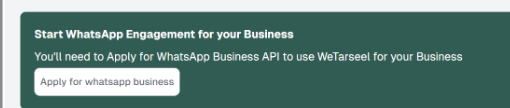
Make sure you have admin access to the Facebook Business Manager account to continue with the application.
Note – Make sure to get your Facebook Business Manager Account verified to get complete access to WhatsApp business platform. You can get it verified simultaneously while applying for WhatsApp business platform or even after procuring the WhatsApp business platform.
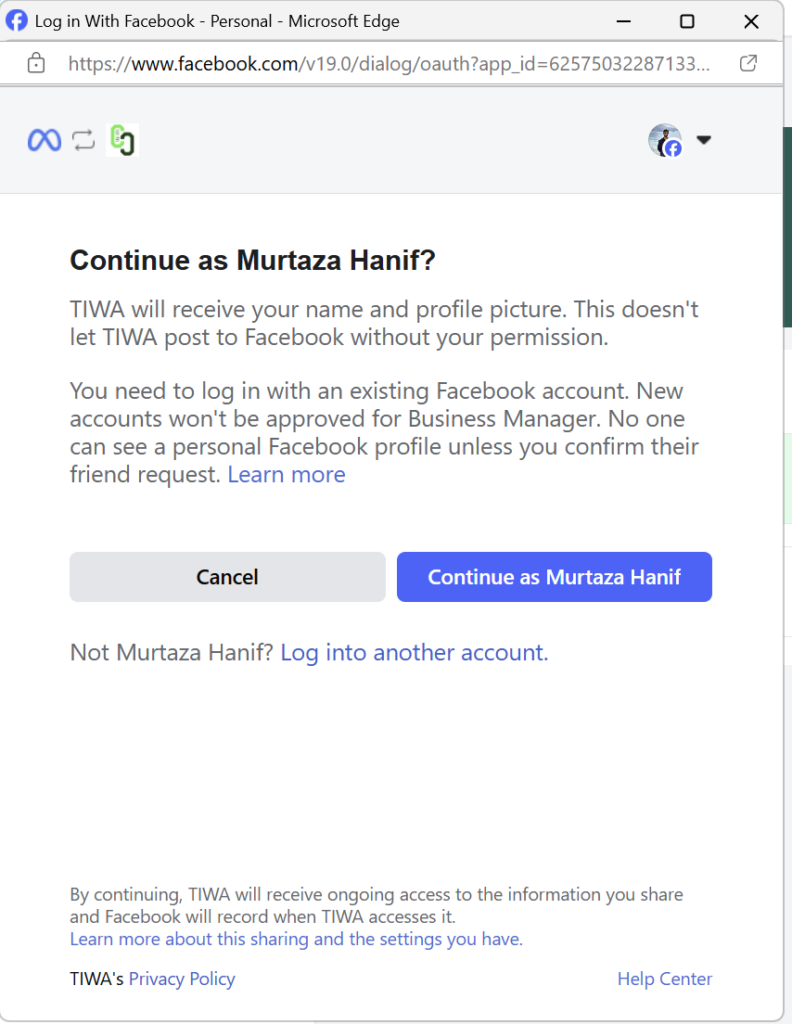
Step 5: Click ‘Continue’
A Facebook Login screen will pop up.
After logging into your Facebook account, click on the “Continue” button to proceed.
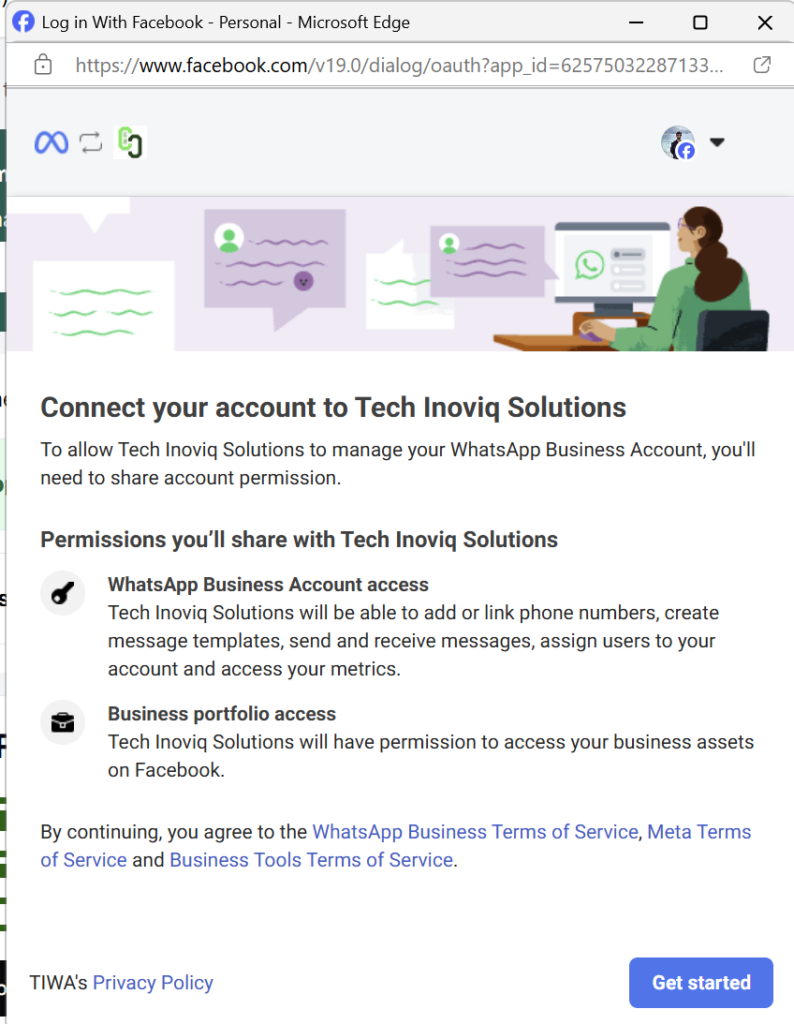
Step 6: Tap ‘Get Started’
Read through the permissions shared and click on “Get Started” to link your Facebook account with Wetarseel.
Step 7: Select Your Facebook Business Manager Account
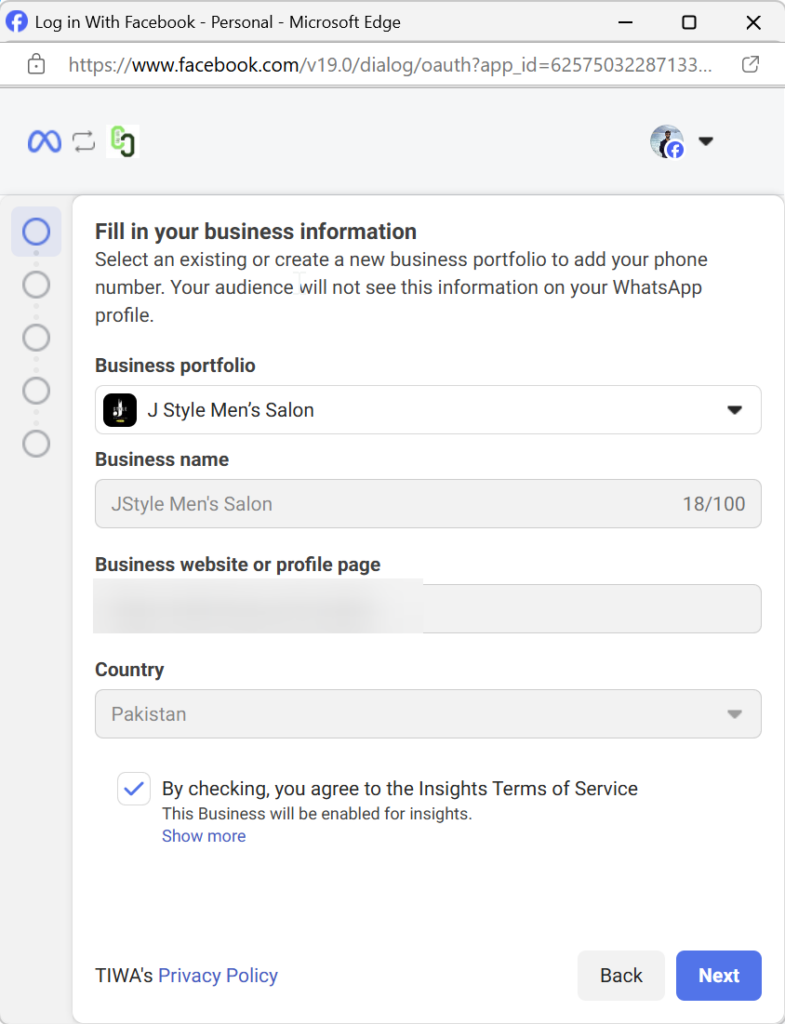
- Choose the Facebook Business Manager Account that you wish to connect with your WhatsApp business platform account.
- Once selected, click Continue.
Step 8: Create Your WhatsApp Business Profile (For Cloud API Setup)
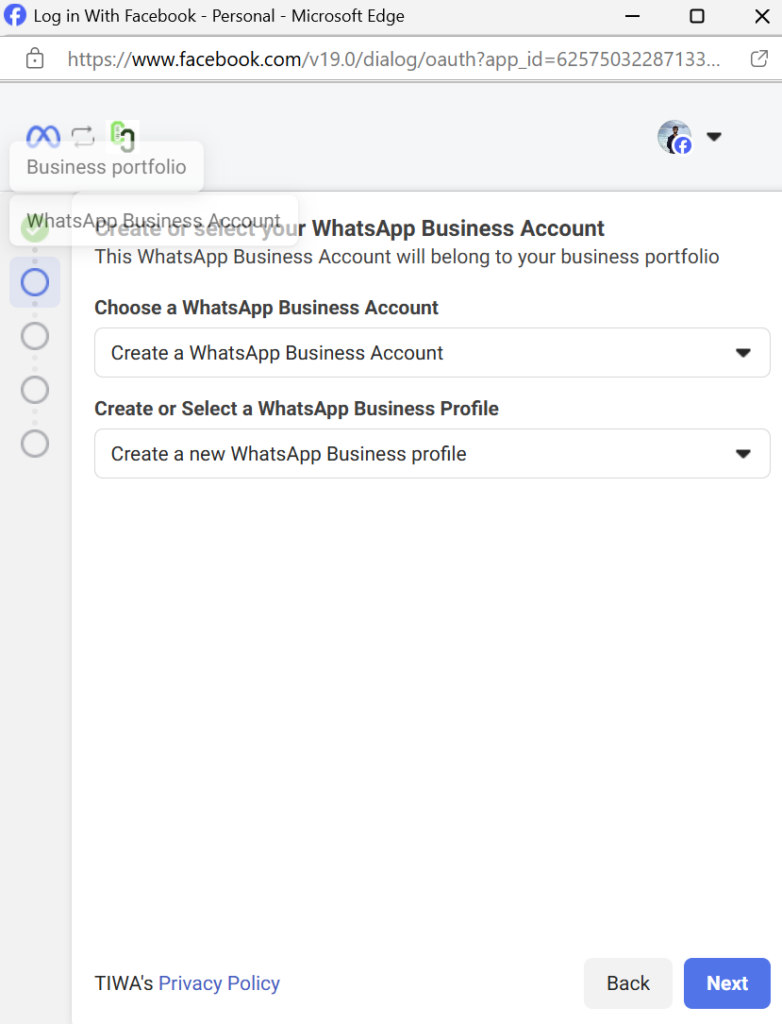
You will now be prompted to create a WhatsApp Business Profile:
- Choose a WhatsApp Business Account Name. This is not the display name, but an internal name for your WhatsApp Business account in Facebook Business Manager.
- Set your WhatsApp Business Display Name (this is what customers will see).
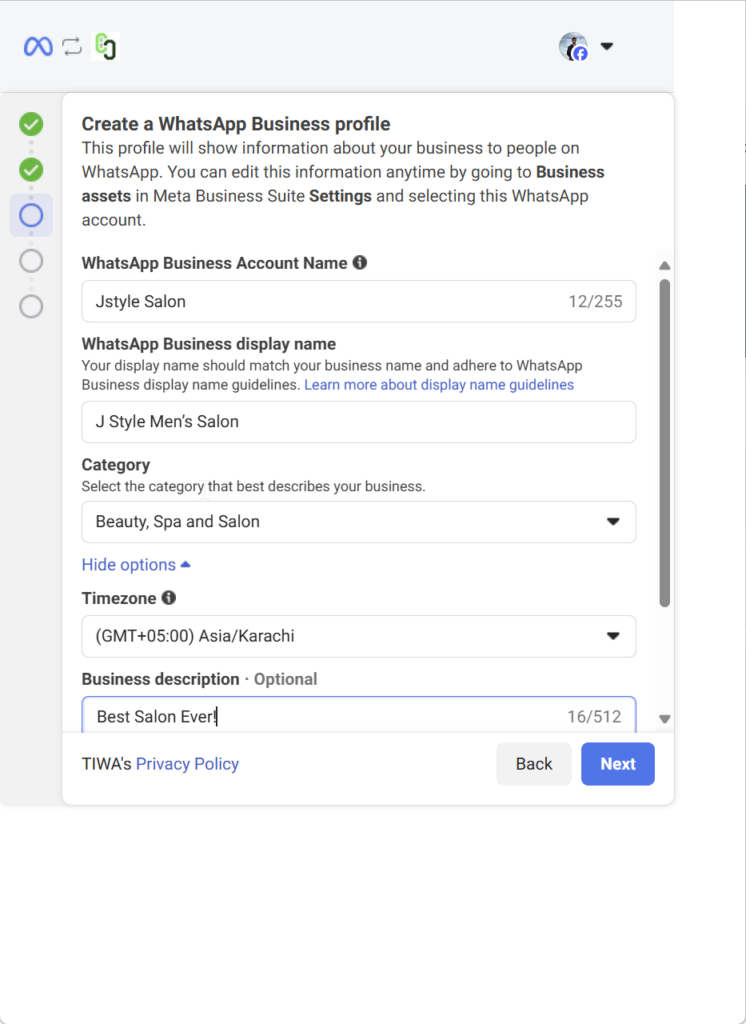
- Select your Business Category from the available options to categorize your business (e.g., Retail, Education, Hospitality).
Step 9: Setup WhatsApp Coexistence (Use Existing WhatsApp Business App Number)
If you want to continue using your existing WhatsApp Business App number together with the WhatsApp API, choose the Coexistence option during onboarding.
This allows you to:
- Keep your existing chats and contacts
- Continue using the WhatsApp Business App on your phone
- Use API automation, CRM integrations, broadcasts, and multi-agent support simultaneously
Follow These Steps Carefully
- Start the Embedded Signup process and click Continue to connect your business account with Wetarseel.
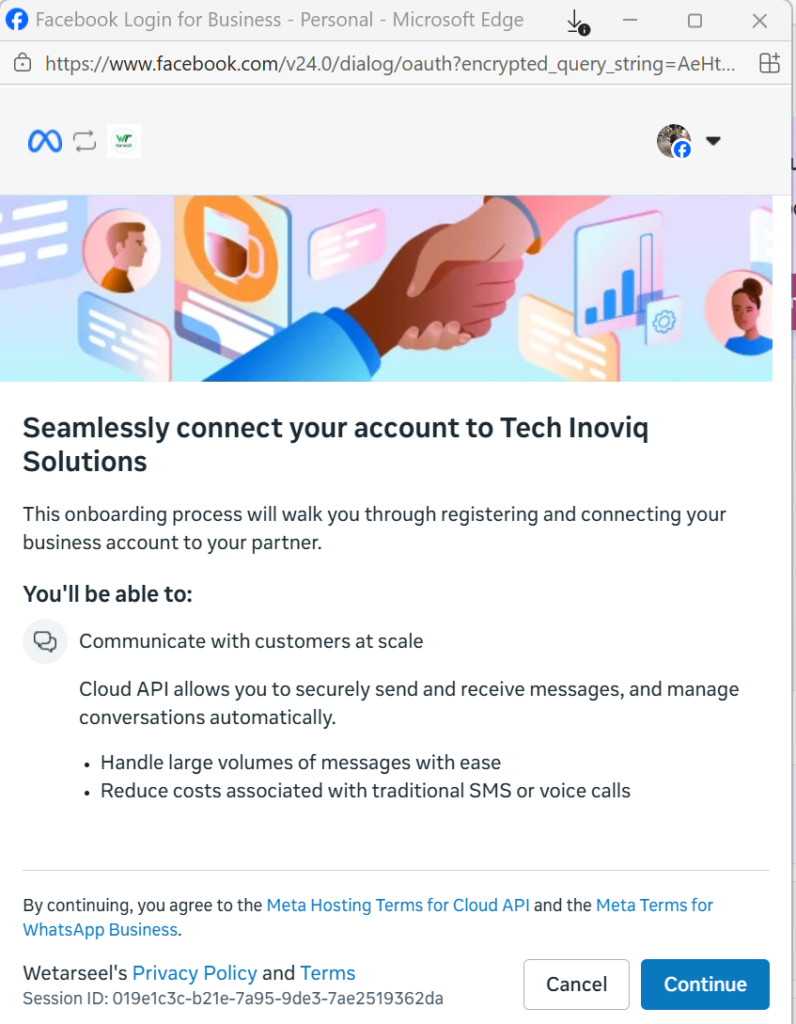
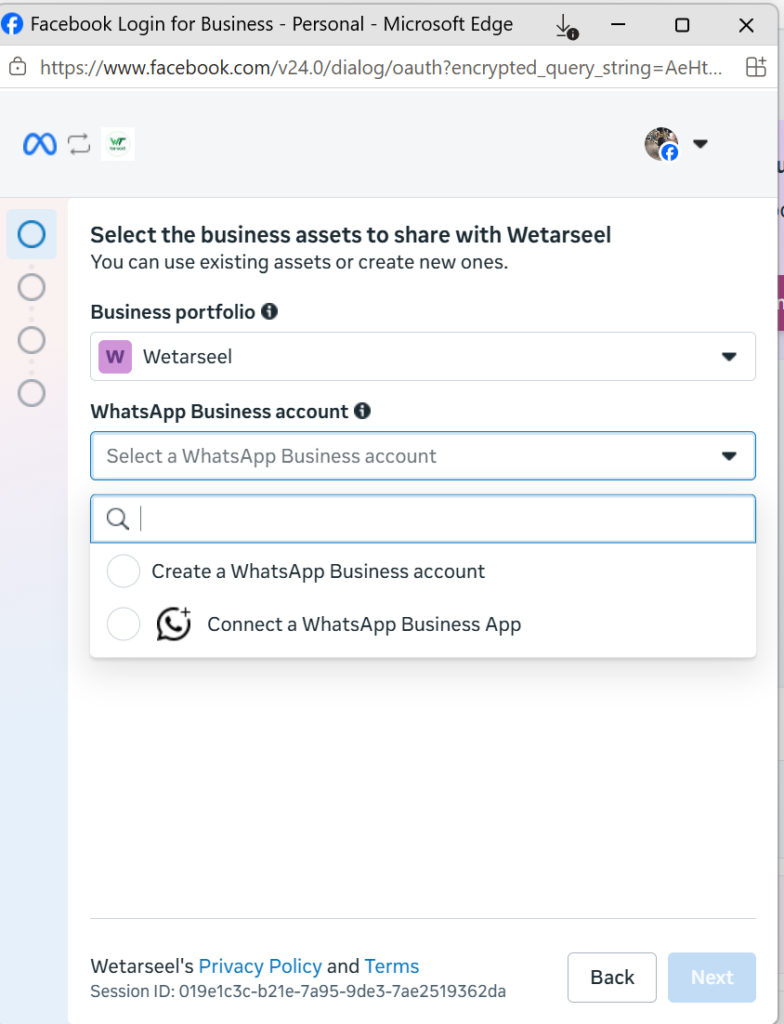
- Under Select the business assets to share with Wetarseel, choose:
- Your Business Portfolio
- Your WhatsApp Business Account
- Select Connect a WhatsApp Business App instead of creating a new WhatsApp Business account.
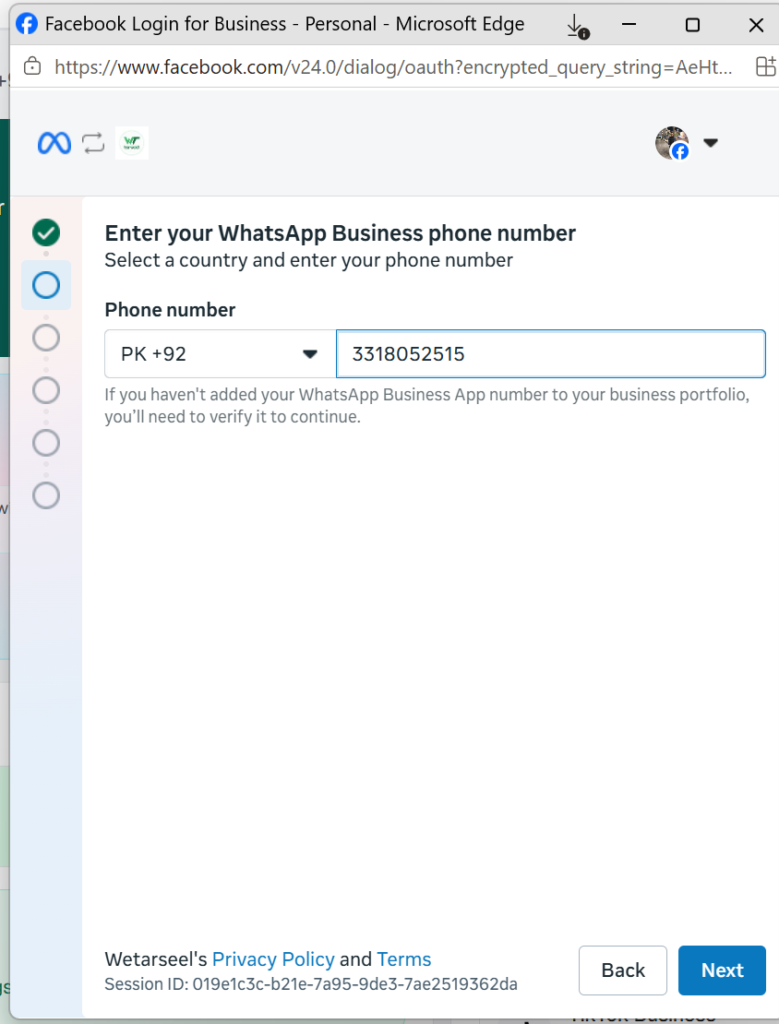
- Enter your existing WhatsApp Business App phone number and click Next.
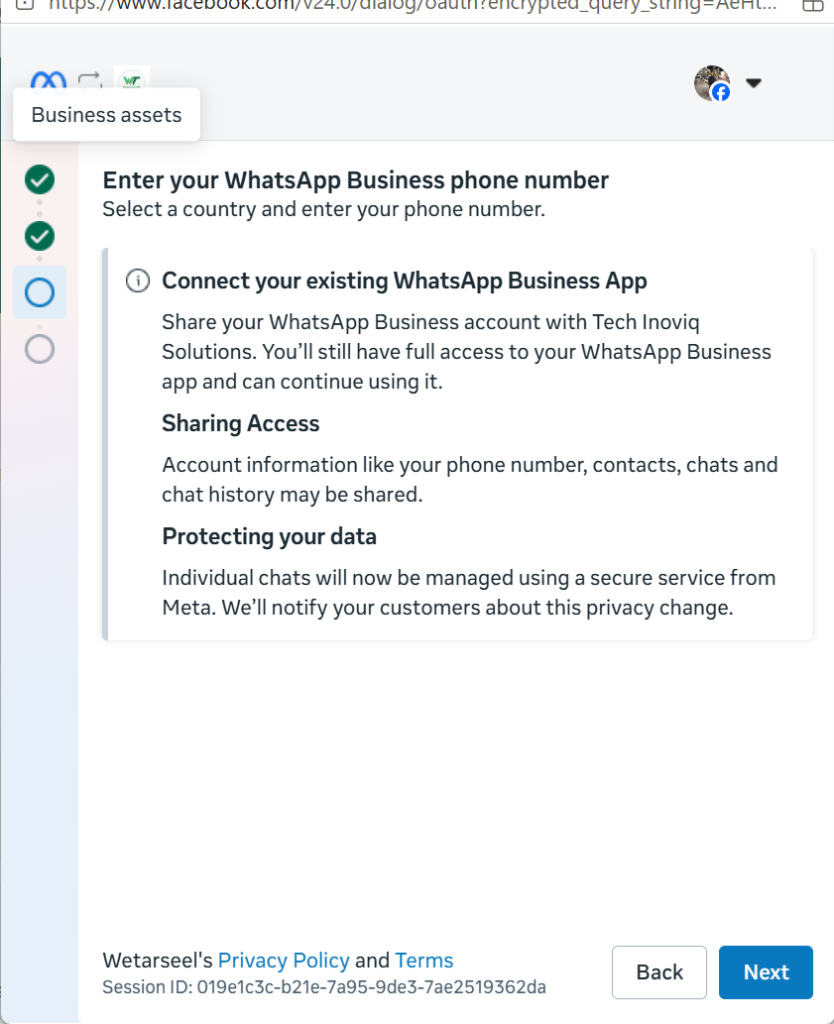
- Meta will display a confirmation screen explaining that your existing WhatsApp Business App will connect with the Business Platform while still remaining accessible on your phone. Click Next.
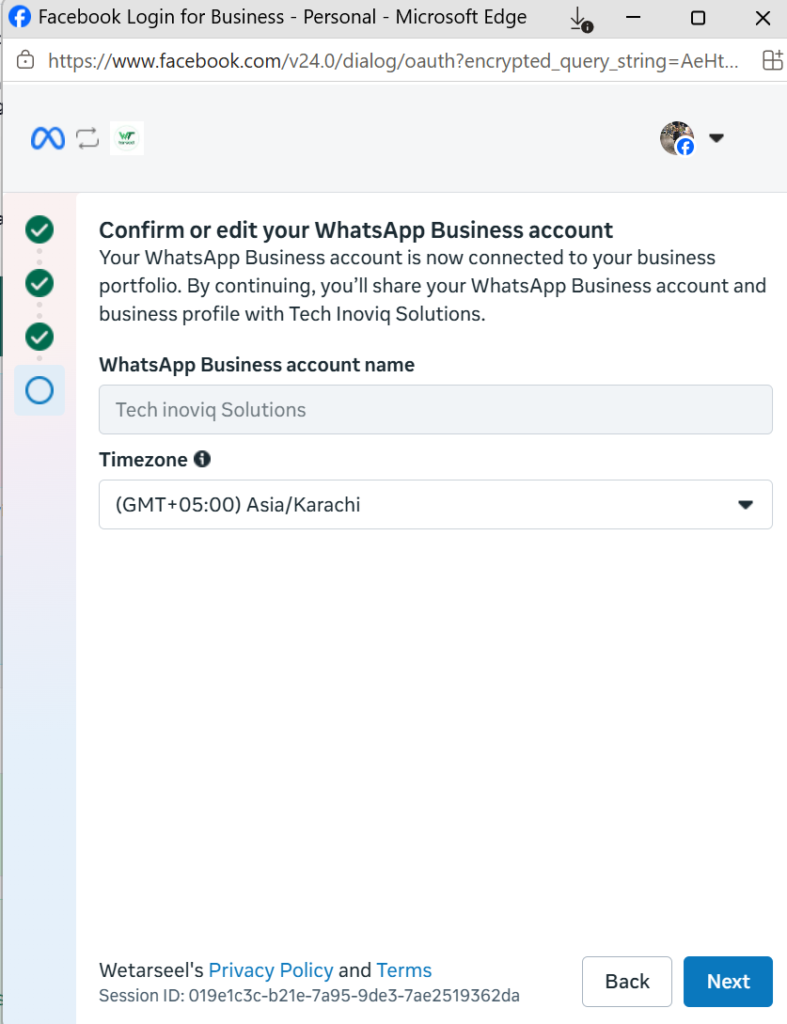
Confirm your:
- WhatsApp Business Account name
- Timezone
Then click Next.
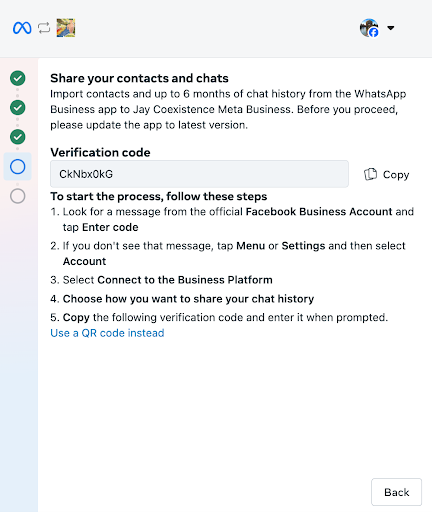
- A verification screen will appear with an access code and setup instructions.
- Open your WhatsApp Business App on your phone and wait for a message from the official Facebook Business account.
- Inside the message:
- Tap Connect
- Tap Continue
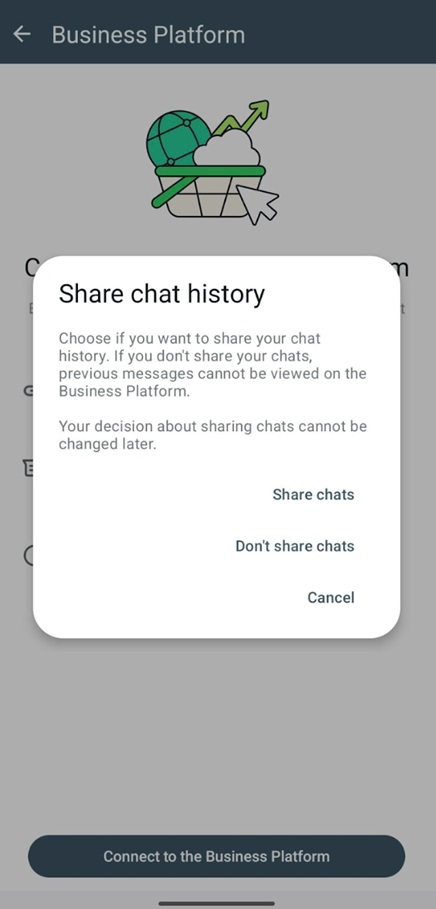
Tap Connect to the Business Platform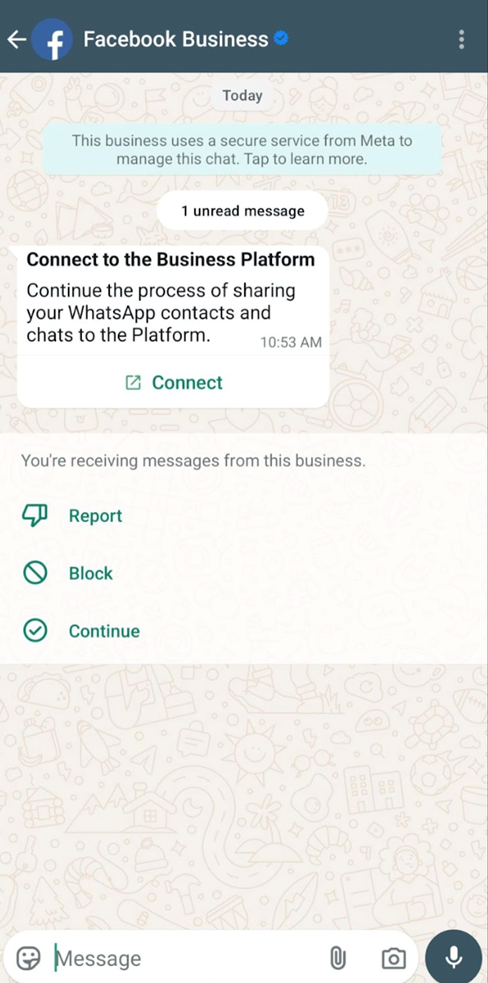
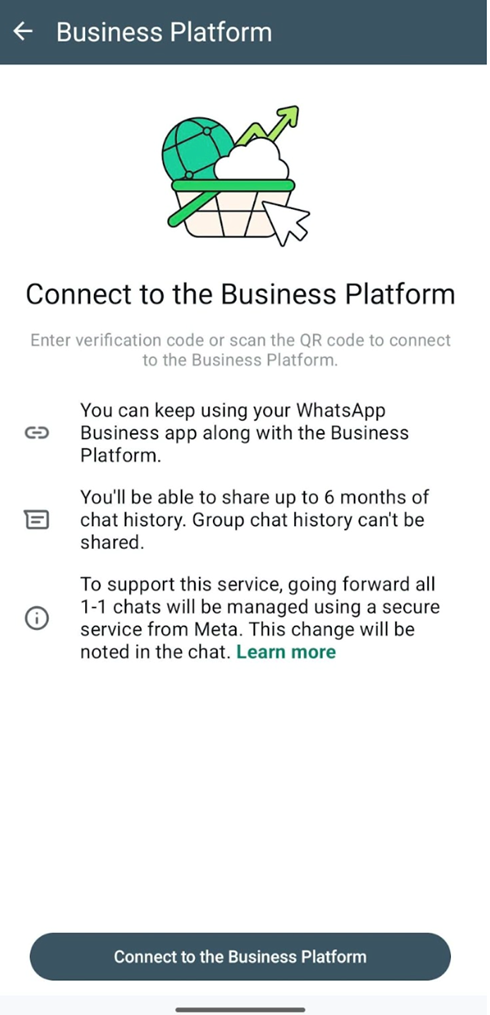
10. WhatsApp may ask whether you want to share your chat history:
- Tap Share chats if you want to import contacts and up to 6 months of chat history
- Or choose Don’t share chats to continue without importing chats
- Return to the onboarding screen and:
- Copy the verification code from WhatsApp
- Paste it into the Enter verification code field
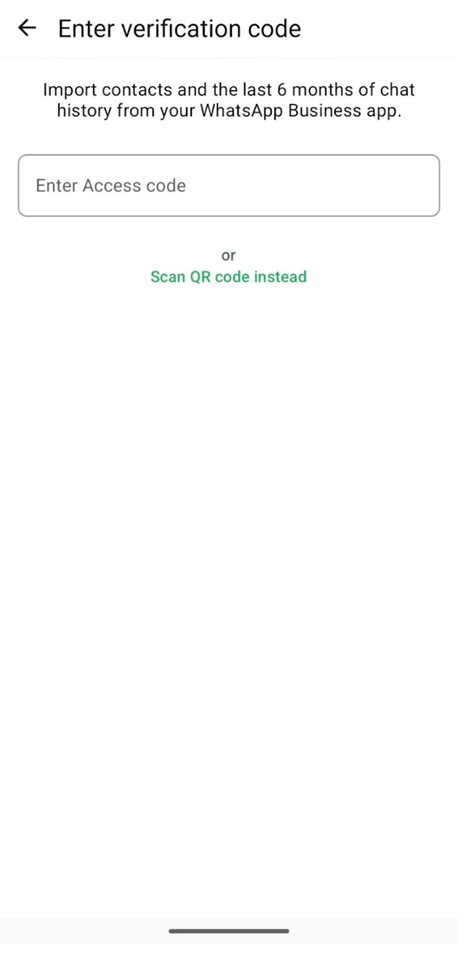
- Click Next to complete the coexistence setup.
Important Notes:
- Your WhatsApp Business App must be updated to version 2.24.17 or higher before starting.
- You can continue using the WhatsApp Business App and the API together on the same number.
- If you choose to share chats, up to 6 months of chat history can be imported.
Step 10: Register Your WhatsApp Business Number (Final Step for Cloud API & Coexistence)
This is the final step for both standard Cloud API setup and WhatsApp Coexistence setup.
Click on “Register your WhatsApp Business Number” and enter the 6-digit PIN of your choice. Make sure to save this PIN securely, as it may be required later for account management or migration.
Congratulations! You’re one step closer to leveraging WhatsApp business platform to grow your business.

Most applications are reviewed and approved within 10 minutes. However, the approval of your Display Name may take up to 3-4 hours.
Once the review is complete, the status of your WhatsApp business platform will be updated to LIVE in the Wetarseel platform.
Last step you need to add credit card on WhatsApp Manager of Meta follow this user guide
Final Thoughts
By following these steps, you will have successfully applied for the WhatsApp business platform through Wetarseel, unlocking features like WhatsApp Broadcasting, automated messaging, and much more for your business. With easy setup and integration, Wetarseel ensures you can get the most out of your WhatsApp business platform, helping you scale customer interactions and drive growth.
If you encounter any issues during the process or have any questions, Wetarseel’s support team is available to assist you.
Ready to start using WhatsApp for your business growth? Here’s a simple guide to create your WeTarseel account and explore how it can support your marketing and customer conversations. It only takes a few steps to get started—and you’ll be one step closer to better engagement and smoother workflows.