More than 3 billion people use WhatsApp every month. Meta’s CEO shared this milestone in April 2025.
Many of your customers are likely among them. A no-code WhatsApp chatbot can reply to them at any hour, and you can build one without writing a single line of code.
Here is the catch. Most guides say “just drag and drop” and stop there. They skip the parts that decide if your bot works: the 24-hour rule, message templates, opt-in, costs, and Meta’s rules for AI bots. Some of those rules changed this year.
This guide covers all of it. You will learn how to plan, build, test, and launch your first bot in 8 clear steps. Want to see what a visual builder looks like as you read? Open our WhatsApp chatbot flow builder page in a new tab. It shows every block, trigger, and feature in one place.
October 2026 Update
Meta changed its pricing on October 1, 2026. Replies inside the 24-hour window used to be free. Now each business phone number gets 1,000 free service messages per month, and Meta charges after that. Utility templates sent inside the window are also charged now. We explain what this means for your bot in the cost section.
Table of Contents
Quick answer: how do you build a no-code WhatsApp chatbot?
You pick one clear goal. You get WhatsApp Business API access through a provider. You map the chat on paper. Then you build the flow in a drag-and-drop builder, add a way to reach a human, set up message templates, test, and launch. After launch, you track results and improve the bot.
- Set one clear goal
- Get your WhatsApp Business API access ready
- Map the conversation on paper
- Build the flow in a no-code builder
- Add human handover
- Set up opt-in and message templates
- Test like a real customer
- Launch, measure, and improve
What is a no-code WhatsApp chatbot?
A no-code WhatsApp chatbot is software that answers WhatsApp messages for your business. You build it with a visual tool, often called a WhatsApp chatbot builder. You place messages, buttons, and menus on a canvas and connect them. No programming needed.
It runs on the WhatsApp Business Platform, also called the WhatsApp Business API. This is Meta’s system for bigger business use.
The free WhatsApp Business app is different. It has simple tools like greeting messages, away messages, and quick replies. For multi-step flows, most businesses connect to the API through a provider.
Rule-based bot vs AI-assisted bot
You can build two kinds of bots. Many businesses mix both.
Rule-based vs AI-assisted WhatsApp chatbot
A rule-based bot follows paths you set with buttons and menus. An AI-assisted bot reads typed messages and replies using your business information.
| Type | How it works | Best for |
|---|---|---|
| Rule-based | The customer taps buttons or picks from a menu. You decide every reply. | Order status, bookings, FAQs, lead forms |
| AI-assisted | The bot reads typed messages and answers using your business information. | Open questions, long FAQ lists |
Simple rule: use buttons for common tasks. Use AI for open questions. Use a human for anything sensitive.
Why build one? Real numbers
WhatsApp automation works because customers are already there. Let us look at what the data says.
- Reach: WhatsApp passed 3 billion monthly users in April 2025, as reported from Meta’s earnings call.
- Business use: The free WhatsApp Business app reached about 200 million monthly users by mid-2023, up from about 50 million in 2020, according to Statista.
Now a real example. Merco Supermercado built a chatbot on the WhatsApp Business Platform with a chatbot developer called GUS Chat.
Merco says 67% of customers solve their questions with the bot, without a live agent.
Source: Merco Supermercado success story on Meta’s developer site. Results are self-reported and will vary.
The company also said that, within 18 months, 95% of its customer interactions happened on WhatsApp instead of other channels. Read the full Merco story.
Be careful with numbers like these. They come from the business itself. Your results depend on your goal, your flow, and your customers. That is why the steps below matter.
What you need before you start
Get these ready first. It saves you hours later.
- A Meta business portfolio. This is your business account on Meta. You manage your WhatsApp account inside it.
- A phone number. It must be able to receive a verification code. Normally, one number cannot run in the Business app and the API at the same time.
- A provider with a no-code builder. This is a company that connects you to the API and gives you the tools to build.
- Your business content. Collect your FAQs, prices, opening hours, and policies in one document.
- A team to take over chats. Decide who answers when the bot cannot.
Already use the WhatsApp Business app?
Meta’s coexistence feature lets you keep your Business app number and connect it to the API too. Availability depends on your country and your provider. It also has limits, such as group chats staying in the app. Read our guide on WhatsApp coexistence to see if it fits you.
The 8 steps to build your no-code WhatsApp chatbot
Step 1: Set one clear goal
Do not start with the tool. Start with the job.
Ask: “What is the one thing this bot must do well?” Pick one:
- Answer common questions (prices, delivery, hours)
- Capture and sort new leads
- Show order status
- Book appointments or demos
- Start a chat when someone clicks your ad
Look at your last 50 customer chats. Which question appears most? Start there. A bot that does one job well beats a bot that does ten jobs badly.
Step 2: Get your WhatsApp Business API access ready
Now connect your business to WhatsApp. Most no-code platforms guide you through this with Meta’s sign-up flow.
Here is what to look for in a provider:
- Official API access. Your bot should run on the official WhatsApp Business API. This keeps you within WhatsApp’s policies.
- A visual flow builder. You should be able to build without code.
- Human handover. Your team should be able to take over from the bot, with the full chat history.
- Template support. You will need approved templates for messages outside the 24-hour window (see Step 6).
- Clear pricing. Ask what the platform charges, and what Meta charges on top.
- Analytics. You need to see what customers do in your flow.
New to Wetarseel? Our guide on how to create a Wetarseel account walks you through sign-up. You can also check the Wetarseel pricing page for plan details.
Step 3: Map the conversation on paper
This is the step most people skip. It is also the step that makes the biggest difference.
Take a pen and paper. Draw the chat as boxes and arrows. Write what the bot says, what the customer can choose, and where each choice leads.
Follow these design rules:
- Say hello and say what the bot can do. Keep it to one or two lines.
- Ask one question at a time. Long messages with many questions confuse people.
- Do not split one answer into five messages. Since October 1, 2026, each delivered reply can count toward Meta’s billing after your free 1,000 (see the cost section). Fewer, clearer messages also read better.
- Keep choices small. WhatsApp reply buttons allow up to 3 options. List messages allow up to 10 options, as Meta’s developer team explains. Work within these limits.
- Always add “Talk to a person.” Nobody likes being stuck in a bot loop.
- Plan for odd replies. If someone types something you did not expect, show the main menu again.
Here is a sample for a small online shoe store. It is an example only.
Sample WhatsApp chatbot conversation: order tracking
This example shows a simple order-tracking bot for an online shoe store. The customer picks a button, types an order number, and gets an instant update, with a human option at every step.
Sole Street
Business account · example only
Customer: Hi
Bot: Hi! I’m the Sole Street assistant. What do you need today?
- Track my order
- Return or exchange
- Talk to a person
Customer taps: Track my order
Bot: Sure. Please type your order number.
Customer: SS-10482
Bot: Thanks! Your order is on its way. Need anything else?
- Main menu
- Talk to a person
Why this flow works
- Short messages. Each reply is one or two lines.
- Few choices. Three buttons, which is the WhatsApp limit for reply buttons.
- One question at a time. The bot asks only for the order number.
- A way out. “Talk to a person” is always one tap away.
Step 4: Build the flow in a no-code WhatsApp chatbot builder
Now bring your paper map to life. In a visual builder, each box on your map becomes a block on the canvas.
In general, you will do these things:
- Create a new flow and give it a clear name.
- Drag in your message blocks: text, images, buttons, and list menus.
- Add input fields to collect details like name, email, or order number.
- Set a trigger. This decides what starts the flow.
- Add rules, so the flow changes based on the customer’s answer.
- Preview the flow before you publish it.
Here is how this works in Wetarseel.
You open the dashboard, click Create Flow, and name it.
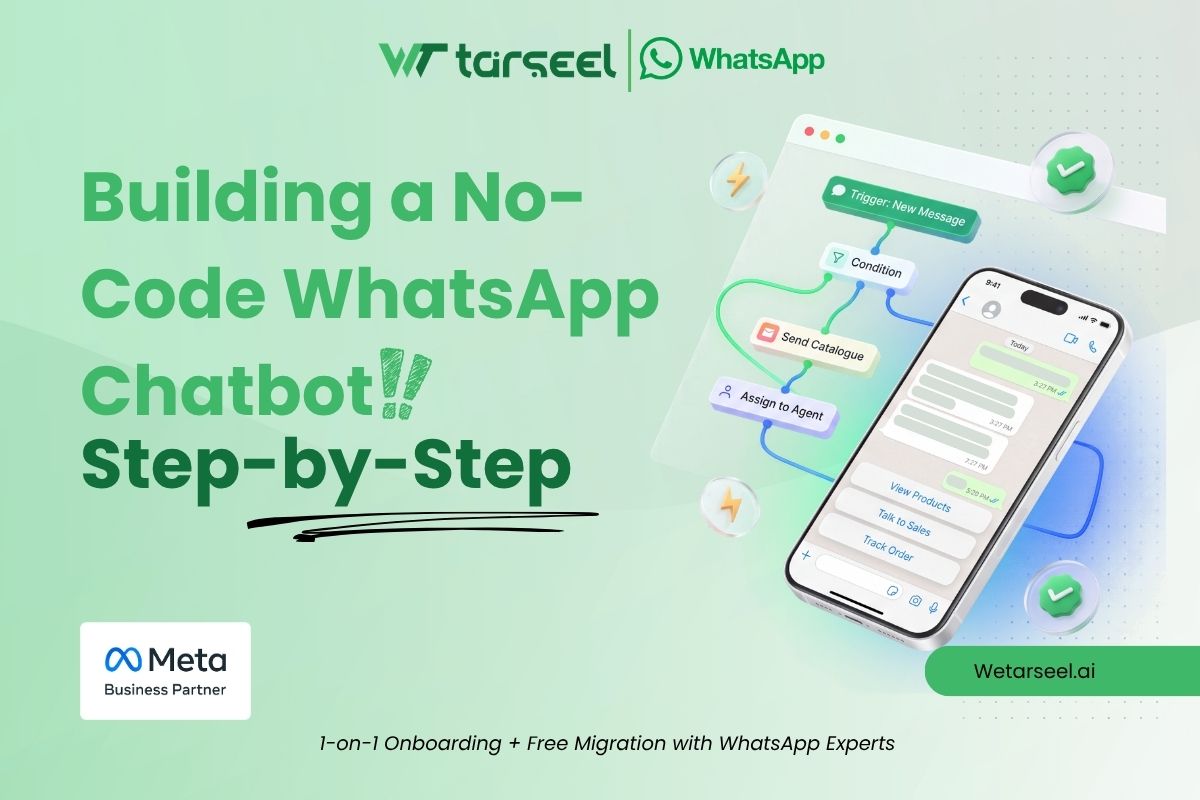
Then you drag blocks onto the canvas and connect them in the order you want. You can start a flow from a keyword, a Click-to-WhatsApp ad, an Instagram message, a website chat widget, or a button in another flow.
You can also tag leads and branch the chat based on tags and replies. You can see each block and trigger in our WhatsApp chatbot flow builder guide.
Selling on Shopify?
An order-tracking bot is often the first bot stores build. Wetarseel lets customers check order status with order tracking tags, with no agent needed. See our Shopify app for WhatsApp API page for details.
Step 5: Add human handover
Even the best bot cannot solve everything. A good bot knows when to step back.
Send the chat to a person when:
- The customer asks for a human.
- The bot fails to understand twice in a row. (This is a good rule of thumb, not a Meta rule.)
- The topic is a complaint, a refund, or a payment problem.
- The customer looks ready to buy something big.
When the handover happens, your agent should see the full chat history and any details the bot collected. This way the customer never has to repeat themselves. With Wetarseel’s multi-agent Team Inbox, the chat moves to your team with notes and conversation history.
Step 6: Set up opt-in and message templates
This step keeps your account safe. It also decides when your bot can message first.
The 24-hour rule
When a customer messages you, a 24-hour customer service window opens. Each new message from the customer resets it. Inside this window, you can send free-form replies. This is where most bot chats live.
Reply-button and list messages are not templates, so they work only inside this window. Meta’s developer blog notes that you can send lists and buttons only as a reply to a user-started message.
Templates
After the window closes, you can send only approved message templates. Meta says templates are the only message type that can be sent outside a customer service window.
Every template belongs to one of three groups:
- Marketing: offers, news, and promotions
- Utility: updates about an order or account
- Authentication: one-time passcodes
Meta reviews each template before you can use it. Review can take up to 24 hours, so plan ahead.
Opt-in
You need the customer’s permission before you send them business-started messages. Collect it clearly, for example on a checkout page, a sign-up form, or inside a chat. Tell people how to opt out, and respect it when they do.
Good to know: messaging limits
New business portfolios start with a limit of 250 unique users per day for business-started messages sent outside the service window. It can grow to 2,000, then 10,000, then 100,000 and beyond as you send quality messages. See Meta’s messaging limits page.
These limits count messages you start. A customer who messages you first does not use up this limit.
Step 7: Test like a real customer
Never launch a bot you have not tested on a real phone. Ask a friend or teammate who did not build it to try it too. They will click things you never thought of.
Use this checklist:
- Tap every button and every list option.
- Type random text, emojis, and a wrong order number.
- Send a photo or voice note where the bot expects text.
- Ask for “Talk to a person” and check that the handover works.
- Check spelling, tone, and links.
- Test at night and on weekends, if your team is offline then. What does the customer see?
- Wait over 24 hours and check what happens after the window closes.
Fix every dead end you find. A dead end is a point where the customer has no next step.
Step 8: Launch, measure, and improve
Do not announce the bot to everyone on day one. Start small. Use one entry point, such as a WhatsApp link (you can make one with our WhatsApp link generator), a QR code, or one ad. Watch the first chats closely.
Then track a few numbers:
7 WhatsApp chatbot metrics to track after launch
Track these seven numbers to see if your bot saves time, keeps customers happy, and stays within Meta’s rules. Each row says what to measure and why it matters.
| What to track | Why it matters |
|---|---|
| Chats solved without an agent | Shows how much work the bot really saves |
| Handover rate | A high rate means the bot is missing common questions |
| Messages sent per solved chat | Shows if your flow is wordy. This now affects your Meta bill too |
| Drop-off point | Shows the step where customers leave |
| Lead form completion | Shows if your questions are too long or too many |
| Opt-outs and blocks | Warns you if messages feel pushy or off-topic |
| Template quality | Poor quality can limit your ability to send more messages |
Tip: read real chats every week at the start. You will spot new questions fast, then add them to your flow.
Ready to see how a flow looks before you build yours?
Our WhatsApp chatbot flow builder page shows the blocks, triggers, lead capture, human handover, and use cases in one place. It is a quick way to picture your own bot.
How much does it cost to run a WhatsApp chatbot?
There are two parts: what your platform charges and what Meta charges. Meta’s rules changed on October 1, 2026, so read this part with care.
What Meta charges now
Since July 1, 2025, Meta bills per delivered message instead of per conversation. The price depends on the message type and the country of the person you message. Here is how it works today, based on Meta’s pricing page and recent reporting on the October change:
WhatsApp Business API message costs (from October 1, 2026)
Meta charges businesses per delivered message. Marketing templates are always charged. Free-form replies inside the 24-hour window are free for the first 1,000 per business phone number each month, then charged. Messages your customer sends you are free.
| Message type | Cost |
|---|---|
| Marketing templates | Charged on every delivered message |
| Utility templates sent outside the 24-hour window | Charged |
| Utility templates sent inside the 24-hour window | Free until September 30, 2026. Charged from October 1, 2026 |
| Service messages (free-form replies inside the window, from your bot or your agents) | First 1,000 per business phone number each month are free. Charged from the 1,001st. The free amount does not roll over to the next month |
| Any message in the 72-hour window after a Click-to-WhatsApp ad click | Free |
| Messages your customer sends you | Free |
Good to know: rates depend on the country of the person you message, and service messages have no volume discounts. Check Meta’s official pricing page for the current rate card.
Meta can change prices only on January 1, April 1, July 1, or October 1.
Last checked: October 2026
What this means for your chatbot
Every reply your bot delivers can use part of your free 1,000. Replies from your human agents count too. A chat that needs 8 short bot messages uses more of your allowance than one that needs 2 clear ones.
So design for fewer, better messages. Combine related details in one message. Skip filler like “One moment please.” Also check that your Meta account has a payment method. Kommo’s help page warns that without one, Meta will not deliver messages after the first 1,000.
What your platform charges
Your provider can charge its own fee on top of Meta’s. Ask for both numbers before you sign up. You can see Wetarseel’s plans on our pricing page.
Meta can change prices only on the first day of a quarter: January 1, April 1, July 1, or October 1. The October 1 update has just taken effect, so use the current rate card, not older blog posts.
Rules you must follow
Meta can limit or ban accounts that break its rules. Keep these in mind.
AI rule since January 15, 2026
Meta updated its WhatsApp Business terms. They ban “AI providers” from using the Business Solution to offer general-purpose AI assistants when the AI itself is the main product. TechCrunch reported the change when it was announced.
What does this mean for you? Businesses that use AI for customer service are not the target. A bot that tracks orders, answers FAQs, or books appointments is a normal business use. A bot that acts like “ChatGPT inside WhatsApp” is not. Keep your bot focused on your own business.
One more note: regulators in the EU, Italy, and Brazil have looked at this rule. Meta has made some regional exceptions, such as for Italian phone numbers. Details can differ by region, so check the current terms.
Also remember:
- Get opt-in before you send business-started messages.
- Use the right template category. Do not label marketing as utility.
- Make opting out easy.
- Do not use WhatsApp for spam. Poor quality can reduce your messaging limit.
8 mistakes to avoid
- Building too much at once. Start with one goal. Add more later.
- No exit to a human. People get angry when they feel trapped.
- Too many choices. WhatsApp limits buttons to 3 for a reason. Short menus work better.
- Ignoring the 24-hour window. Free-form messages fail after it closes. Use templates for follow-ups.
- Messaging without permission. This leads to blocks and reports, which hurt your quality.
- Letting AI answer anything. Give it your own business information and clear limits. Send tricky topics to a person.
- Wordy flows. Since October 1, 2026, extra replies can cost money once you pass 1,000 a month per number. Short flows save budget.
- Launch and forget. Customers change. Your bot must change too.
Frequently Asked Questions (FAQs)
-
Can I build a WhatsApp chatbot without coding?
Yes. Many platforms let you build a chatbot with a drag-and-drop builder. You add messages, buttons, and rules on a canvas. You do not need to write code.
-
Do I need the WhatsApp Business API to build a chatbot?
For multi-step flow bots, usually yes. The free WhatsApp Business app has basic tools like greeting and away messages. For flows, templates, and team inbox features, most businesses use the API through a provider.
-
Is a WhatsApp chatbot free?
Not fully. Your platform may charge a plan fee. Meta charges for template messages by category. Since October 1, 2026, Meta also charges for free-form replies inside the 24-hour window after the first 1,000 per business phone number each month. Messages inside the 72-hour window after a Click-to-WhatsApp ad click are free.
-
How many buttons can a WhatsApp chatbot message have?
Reply button messages allow up to 3 buttons. List messages allow up to 10 options.
-
Can a chatbot send the first message?
Yes, but only with an approved message template, and only to people who gave you permission. Free-form messages can be sent only inside the 24-hour window after a customer writes to you.
-
Are AI chatbots allowed on WhatsApp?
AI used for customer service is allowed. Since January 15, 2026, Meta's terms ban general-purpose AI assistants when they are the main product offered through the WhatsApp Business Solution. Regional exceptions exist, so check the current terms.
-
Can my team and the bot use the same WhatsApp number? Yes. Platforms with a shared team inbox let the bot handle simple chats and pass harder ones to your agents on the same number.
Can my team and the bot use the same WhatsApp number? Yes. Platforms with a shared team inbox let the bot handle simple chats and pass harder ones to your agents on the same number.
-
How long does it take to set up a chatbot?
It depends on your flow and on approvals. A small flow is quick to build. Account setup and template review depend on Meta, and template review can take up to 24 hours.
Final thoughts
A no-code WhatsApp chatbot is not magic. It is a well-planned conversation that runs on its own.
Pick one goal. Map the chat on paper. Keep choices small. Give people an easy way to reach a human. Respect Meta’s rules. Then test, launch, and keep improving.
When you are ready to turn your map into a live bot, open the Wetarseel WhatsApp chatbot flow builder and create your first flow.