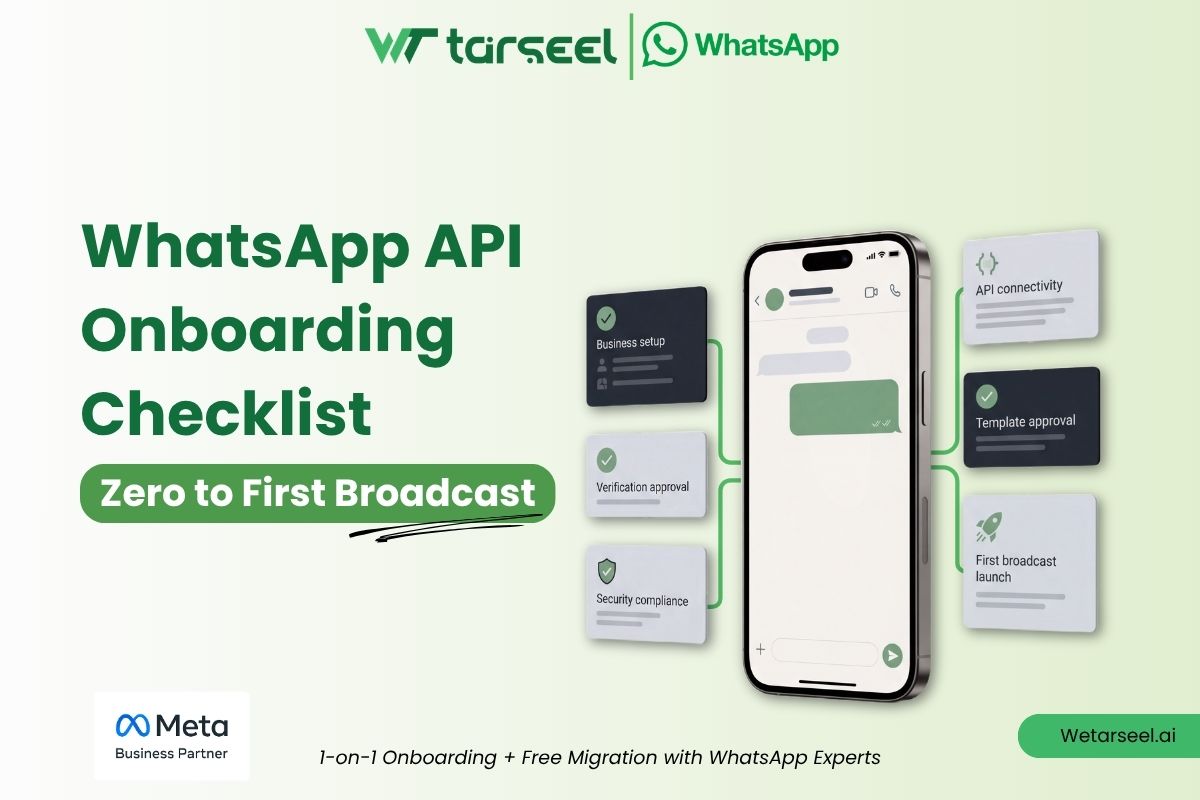
There are nine checkpoints between “we should automate WhatsApp” and your first delivered broadcast. Miss any one of them, and you can lose real time chasing down why nothing sends.
That gap is what this WhatsApp API onboarding checklist is built to close. Not the marketing-page version of “get started in minutes,” but the real sequence: Meta Business verification, WhatsApp Business Account (WABA) creation, phone number registration, display name approval, template review, messaging tiers, the new per-message pricing model, and finally, a broadcast that actually lands instead of bouncing off a policy filter.
If you’re still deciding whether your business even needs the API, or whether the free WhatsApp Business App would do the job, our pillar guide on WhatsApp Business API vs WhatsApp Apps breaks that decision down first. This article picks up right after that decision is made, when you’ve confirmed you need the API and you want to go from zero to a live, delivered broadcast without the false starts.
Why This Checklist Exists (and Why Most Onboarding Guides Skip Half of It)
Most “how to get WhatsApp API” articles stop at “apply for access.” They don’t tell you that:
- New WhatsApp Business Accounts start capped at 250 unique contacts per rolling 24 hours, and Business Verification is only one of three official ways to clear that ceiling, most guides only mention the one.
- Meta retired conversation-based pricing on July 1, 2025, and now bills per delivered template message instead of per 24-hour conversation window, which changes how you should budget for your first campaign.
- Since October 2025, messaging limits are pooled across every phone number inside one Meta Business Portfolio, not assigned per number. Adding a second number doesn’t double your sending capacity anymore.
- A single incorrectly categorized template (say, promotional copy submitted as “Utility” to dodge marketing rates) is one of the most common reasons first campaigns get rejected or reclassified after the fact.
None of that is exotic information. It’s all documented by Meta and its official partners. But it rarely makes it into a checklist, which is exactly why so many teams onboard the account correctly and then stall at the template or broadcast stage. Let’s fix that, one checkpoint at a time.
Before You Start: WhatsApp API Onboarding Requirements
Gather these before you open a single dashboard. Every delay in WhatsApp API onboarding traces back to one of these being missing on day one.
- A registered legal business with a name that matches your official documents (tax certificate, trade license, or incorporation papers).
- A phone number that is not currently active on the WhatsApp Business App or personal WhatsApp. A number can serve either the consumer app or the Business Platform, not both, unless you specifically use Meta’s Coexistence flow to migrate an existing Business App number without losing chat history.
- A live business website with your official business name visible, typically in the footer, plus a privacy policy. Meta’s review team checks this during verification.
- Admin access to a Meta Business Manager account, since WhatsApp API access is granted through Meta’s Business Manager (business.facebook.com), not through a WhatsApp app.
- A payment method (credit or debit card) for Meta’s billing, separate from whatever platform fee your provider charges.
- A decision on your onboarding path: apply directly through Meta’s Cloud API, or go through a Business Solution Provider (BSP) that manages the technical layer for you.
With those in hand, here’s the checklist in the order Meta’s own onboarding flow actually expects it.
Step 1: Set Up (or Clean Up) Your Meta Business Manager
Everything downstream, verification, number registration, template review, is tied to a Meta Business Portfolio (what most people still call Business Manager). If you already have one running your ad accounts, use it. Don’t create a second one just for WhatsApp; fragmented business portfolios are one of the most common reasons verification gets delayed, since Meta’s reviewers cross-check business details across your existing assets.
Do this:
- Confirm your business name, address, and website in Business Manager exactly match your legal documents.
- Remove outdated admins or duplicate business entries.
- Note your Business Portfolio ID; your BSP or developer will ask for it.
Step 2: Complete Meta Business Verification (or Another Scaling Path)
This is the checkpoint that determines your starting messaging limit, and it’s the one most guides underplay.
Every new business portfolio starts at 250 unique contacts per rolling 24-hour window for business-initiated messages, according to Meta’s own Messaging Limits documentation. That’s not a soft warning, it’s a hard technical ceiling. You can build perfect templates and a clean contact list, but at 250 you simply cannot reach more people than that in a day.
Here’s the part most WhatsApp API onboarding checklists get wrong: Business Verification is one of three official routes Meta offers to lift that ceiling to 2,000. The others are having your BSP complete partner-led verification on your behalf, or simply sending 2,000 delivered messages to unique contacts within a rolling 30-day window while keeping a high template quality rating. In practice, most businesses still verify, because it’s the fastest and most reliable of the three, but it’s useful to know a slow verification review doesn’t have to be a hard blocker if your early sending is clean.
Business Verification itself asks Meta to confirm your business is real and legitimate. You’ll typically submit:
- A business document (registration certificate, tax ID, or utility bill matching the business address)
- A business phone number or website Meta can use to confirm legitimacy
- Sometimes, a short verification call
There’s no official turnaround time published by Meta for Business Verification, but based on widely reported experience across BSPs and their clients, it commonly lands somewhere between a few days and three weeks, with straightforward applications and clean documentation typically clearing faster than complex or first-time ones. Start this step in parallel with everything else; don’t wait for it to finish before building templates.
Once you clear 2,000, further increases to 10,000, 100,000, and Unlimited happen automatically, Meta re-evaluates eligibility on a rolling basis and, per its documentation, raises your limit by one level within about 6 hours once you’re sending high-quality messages and have used at least half your current limit in the trailing 7 days.
Practical tip: A verified badge does more than raise your ceiling. It also improves deliverability trust and reduces the chance your future marketing templates get pushed into stricter review queues.
https://wetarseel.ai/how-to-apply-for-blue-tick-in-whatsapp-business-platform-the-ultimate-2025-guide/
Step 3: Choose Your Onboarding Path: Direct Cloud API vs a BSP
This is the fork in the road our pillar article on WhatsApp Business API vs WhatsApp Apps touches on from the business-need side; here’s the practical, onboarding-side version of that same decision:
- Direct Cloud API (self-managed): You build against Meta’s Cloud API yourself. No monthly platform fee to a third party, but you own webhook handling, template management, and support entirely in-house. Sensible if you have engineering resources and want full control.
- Business Solution Provider (BSP), like Wetarseel: A BSP wraps the Cloud API in a dashboard, broadcast tools, chatbot builder, CRM integrations, and hands-on support, and typically onboards you through Meta’s Embedded Signup flow, the same official flow Meta itself recommends for fast, compliant onboarding. Most small and mid-sized businesses go this route because it collapses weeks of API integration work into a guided setup.
Whichever path you choose, both ultimately register your business on the same underlying WhatsApp Business Platform, the pricing, template rules, and messaging tiers described in this checklist apply either way.
How to create a Wetarseel Account
Step 4: Register Your WhatsApp Business Account (WABA) and Phone Number
This is where your business phone number actually becomes API-enabled. Through Embedded Signup (Meta’s standard flow, now on version 4; Meta has confirmed it is retiring versions 2 and 3 on October 15, 2026, so any provider you evaluate should already be migrated), you or your BSP will:
- Connect your Meta Business Portfolio.
- Add and verify the phone number via an SMS or voice OTP.
- Create your WhatsApp Business Account (WABA) under that number.
A number-migration reality check: if your number is currently active on the WhatsApp Business App, you have two options. You can delete the WhatsApp account tied to that number entirely and register it fresh on the API (the older, more disruptive route), or use Meta’s Coexistence feature, which lets the Business App and the API run on the same number simultaneously, preserving chat history and contacts.
Coexistence is rolling out gradually and its availability depends on your country, your BSP, and number eligibility, so confirm support with your provider before committing to a migration plan.
WhatsApp Coexistence – Use WhatsApp Business App & API on the Same Number
Step 5: Get Your Display Name Approved
Your display name is the business name customers see in the chat, and Meta reviews it separately from your account itself. This step trips up more businesses than it should, because the rules are stricter than people expect:
- The name must reflect your actual, established business identity, not a generic phrase or a promotional slogan.
- It must be consistent with your business’s presence elsewhere (website, social profiles, other Meta assets).
- Names containing unapproved claims, symbols, or misleading branding get rejected.
Display name review typically runs alongside number registration. If it’s rejected, you’ll get a reason in WhatsApp Manager, fix the specific issue rather than resubmitting the same name; repeated rejections can slow down trust signals on the account.
Step 6: Build and Submit Your Message Templates
You cannot message a customer outside an active 24-hour conversation window without a pre-approved template. This is the single most technical checkpoint in the whole process, and it’s worth getting right before you touch a broadcast tool.
Meta reviews templates under three categories, and picking the wrong one is the top cause of rejection or unwanted reclassification:
| Category | Purpose | Example |
|---|---|---|
| Utility | Transactional updates tied to something the customer already requested or purchased | Order confirmation, shipping update, appointment reminder |
| Marketing | Promotional content, offers, re-engagement, new product pushes | Sale announcement, discount code, “we miss you” message |
| Authentication | One-time passcodes and identity verification only | Login OTP, account recovery code |
Meta’s reviewers check intent, not just wording. Submitting promotional copy under “Utility” to access lower rates or looser rules is the most cited rejection reason across BSP documentation, and Meta can reclassify an already-approved template into Marketing after the fact if usage doesn’t match the declared category. Other common rejection triggers include vague or missing variable context, shortened or mismatched-domain links, poor grammar, and requests for sensitive data like payment details or ID numbers inside a template.
Template review is usually fast (many utility templates clear automated review within minutes) but can take up to 24–48 hours if flagged for manual review, longer for first-time submissions on brand-new accounts. Submit your templates early, well before the campaign date you’re planning around.
Step 7: Understand Messaging Tiers, Quality Rating, and Opt-Ins Before You Scale
Three things gate how big your first (and every future) broadcast can be:
1. Messaging tiers. Per Meta’s own Messaging Limits documentation, every business portfolio starts at 250 and climbs like this:
- 250 unique contacts/24h — every new business portfolio
- 2,000 — after completing one of the three scaling paths from Step 2
- 10,000
- 100,000
- Unlimited — reserved for accounts with sustained, high-quality sending at volume
Tier upgrades beyond 2,000 happen automatically, Meta’s documentation states the criteria as maintaining high message quality and using at least half your current limit within the trailing 7 days, and this limit is pooled across every number in your Business Portfolio since October 2025, not reset per number.
2. Quality rating. Meta scores both individual templates and business phone numbers on a High (Green), Medium (Yellow), or Low (Red) scale, driven by block rates, negative feedback, and read behavior. A Low rating doesn’t retroactively shrink a limit you’ve already earned, but it does two things that matter just as much: it stops you from qualifying for the next tier up, and it puts your templates at risk of being paused or disabled if the negative signals continue. No amount of verification or volume substitutes for a clean quality signal, which is why your first broadcast should go to a small, genuinely opted-in list, not your entire database.
3. Opt-ins. WhatsApp’s Business Policy requires clear, affirmative consent before you message someone commercially, whether that’s a website checkbox, an in-store sign-up, or an explicit “yes” collected through another channel. Beyond being a policy requirement, this is what protects your quality rating from day one: a broadcast to a cold, unconsented list is the fastest way to collect blocks and reports before you’ve even sent a second message.
Step 8: Understand How You’ll Be Billed Before You Hit Send
This is where a lot of teams get an unpleasant surprise on their first invoice, because the pricing model changed materially in 2025.
As of July 1, 2025, Meta replaced conversation-based pricing with per-message pricing. Under the old model, one template message opened a 24-hour conversation window, and every additional business-initiated template inside that window was free. Under the current model, every delivered template message is billed individually, based on its category (Utility, Marketing, or Authentication) and the recipient’s country, not your business’s location.
A few things worth knowing before your first campaign:
- Service-window replies remain free and unlimited. Since November 1, 2024, Meta removed the old cap of 1,000 free monthly service conversations, so ordinary customer replies inside the 24-hour window don’t cost anything, regardless of volume.
- Only Utility templates get a pass inside an open service window. Send a Utility template while a customer’s 24-hour window is already active and it’s free. Marketing and Authentication templates are billed on delivery regardless of whether a window is open, so don’t assume a promo sent mid-conversation is free just because the customer messaged you first.
- Rates vary significantly by country and category. Some industry pricing guides cite differences of over 10x between the cheapest and most expensive markets, so a broadcast to a mixed-country list won’t cost the same per recipient.
- Volume-tier discounts exist for Utility and Authentication categories, meaning consistent, high-volume senders in a given market can unlock lower per-message rates over time.
- Your BSP’s platform fee is separate from Meta’s charge. Confirm whether your provider bills a flat subscription, a per-message markup, or both, before your first campaign, not after.
Note: See our WhatsApp API Pricing Guide for complete details.
Step 9: Send Your First Broadcast
Once verification is complete, your number is live, your display name is approved, and at least one template is approved, you’re ready. Here’s the sequence that avoids the most common first-broadcast mistakes:
- Start with a test send to a small internal list (your own team’s numbers) to confirm formatting, variables, and delivery render correctly.
- Segment your real list by genuine opt-in status. Don’t broadcast to your entire CRM on day one; a smaller, clean list protects your quality rating far more than a large, unqualified one.
- Match the template category to the message intent. If it’s a promotion, it’s Marketing. If it’s an update the customer is expecting, it’s Utility. Don’t blur the line to save on cost, it risks the rejection or reclassification issues covered in Step 6.
- Send during a sensible local-time window for your recipients’ country, both for response rates and because reputation signals are partly behavioral.
- Watch delivery and read receipts in your dashboard (or via webhook status updates if you’re on direct Cloud API) for the first hour. A sudden spike in failed deliveries or blocks is your earliest quality-rating warning sign.
- Review the numbers before you scale. Delivery rate, read rate, and any quality-rating movement tell you whether it’s safe to broadcast to a larger segment next time.
That’s it. That’s the difference between “we have API access” and an actual, working broadcast channel.
WhatsApp Cloud API and Features
Common Mistakes That Delay Onboarding (and How to Avoid Them)
- Assuming the 250-contact ceiling only lifts via Business Verification. It’s the fastest of three scaling paths, but not the only one, factor that in if verification is running long.
- Submitting a promotional template as “Utility.” It’s the single most-cited rejection and reclassification trigger across BSP documentation. Categorize honestly.
- Migrating a number without checking Coexistence eligibility first, and losing chat history unnecessarily.
- Broadcasting to an entire, unqualified contact list on day one. It’s the fastest route to a Yellow or Red quality rating before your account has any track record.
- Assuming pricing works the way it did before July 2025. Budget per message, per category, per recipient country, not per “conversation.”
- Adding a second phone number expecting a second messaging limit. Since October 2025, limits pool at the Business Portfolio level.
Frequently Asked Questions (FAQs)
-
How long does WhatsApp API onboarding take from zero to first broadcast?
It depends mainly on Business Verification, which has no fixed turnaround published by Meta but, based on common BSP-reported experience, tends to fall somewhere between a few days and a few weeks. Number registration, display name approval, and initial template approval can often be completed within the same week, in parallel with verification, so the verification step is usually the critical path, plan around it rather than a fixed date.
-
Can I send a broadcast before my business is verified?
Yes, but you're capped at 250 unique contacts per 24 hours until you clear that tier. Business Verification is the fastest way to reach the next tier (2,000), but Meta also allows a BSP's partner-led verification or, if you keep quality high, simply sending 2,000 delivered messages to unique contacts within a rolling 30 days. So you can technically broadcast at a small scale before formal verification finishes.
-
What's the difference between the WhatsApp Business App and the API for onboarding?
The Business App is a free, manual, single-device app you download and use directly; there's no Meta review process to send messages. The API requires Meta Business verification, WABA registration, and template approval before you can message customers at scale. For a full breakdown of which one fits your business, see our guide on WhatsApp Business API vs WhatsApp Apps.
-
Do I need a developer to onboard onto the WhatsApp API?
Not necessarily. Going through a BSP typically means a guided, no-code (or low-code) onboarding via Embedded Signup. Direct Cloud API integration does require development resources to handle webhooks, templates, and message sending programmatically.
-
Why was my first template rejected?
The most common reasons are an incorrect category (usually promotional content submitted as Utility), unclear or missing variable context, non-branded or shortened links, and requests for sensitive information like payment or ID details. Meta provides a specific rejection reason in WhatsApp Manager, address that exact issue before resubmitting.
-
How much does the first broadcast actually cost?
Since July 1, 2025, you're billed per delivered template message, not per conversation. The rate depends on the template category (Utility, Marketing, or Authentication) and the recipient's country. Replies inside an open 24-hour service window remain free. Your BSP may add its own platform fee on top of Meta's charge.
Where This Leaves You
The technical steps of WhatsApp API onboarding aren’t complicated on their own.
verify your business, register your number, get a template approved, send a message.
What actually determines whether you go from zero to first broadcast in a week or in a frustrating month is sequencing:
- starting verification early
- choosing the right template category the first time
- sending your opening campaign to a small, genuinely consented list instead of your whole database.
Not sure yet if you even need the full API? Maybe the free WhatsApp Business App is enough for now. That decision comes first. Our guide to WhatsApp Business API vs WhatsApp Apps walks you through it, including how to switch later without losing your number or chat history. Once you’ve made that call, this checklist takes you the rest of the way to a live, compliant, delivered broadcast.