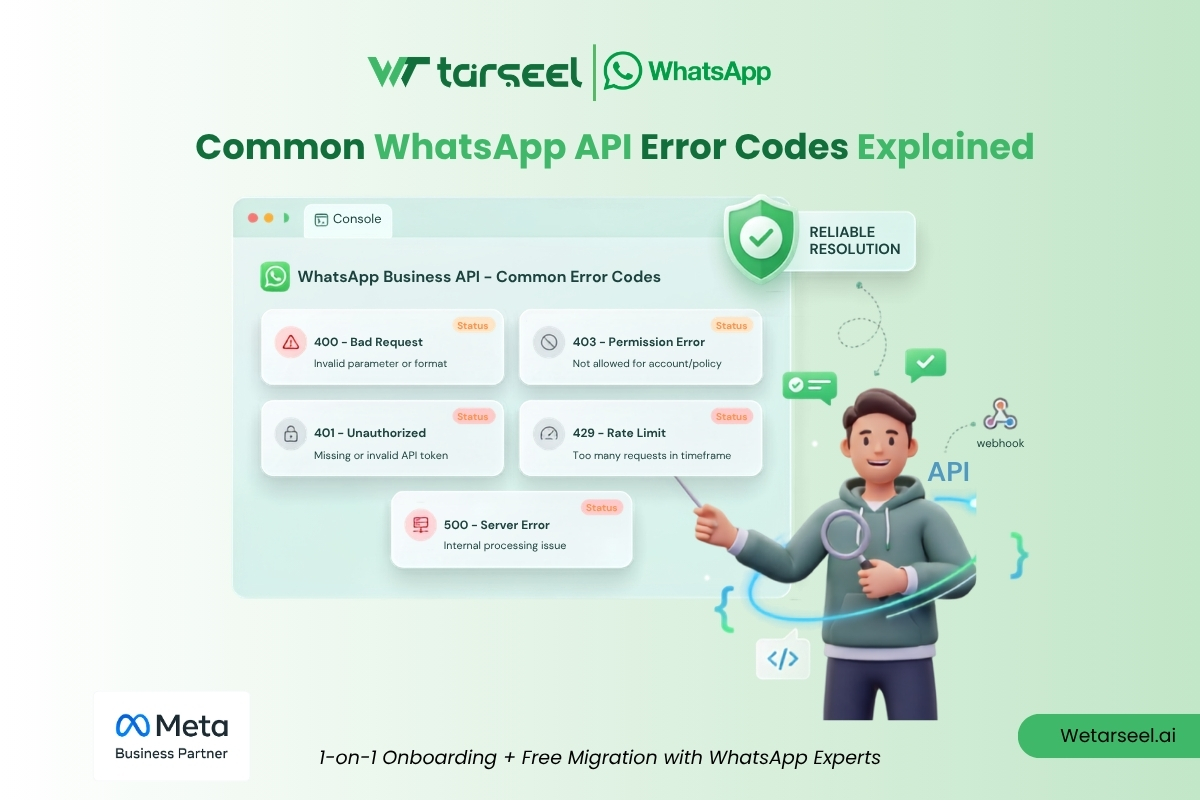
You sent a message. It should have gone through. Instead, you got back a wall of JSON with a code, a message, and maybe an error_subcode, and now you’re stuck trying to figure out whether this is your fault, WhatsApp’s fault, or your customer’s fault.
Here’s the good news:
Almost every WhatsApp API error falls into one of a handful of buckets. Once you know the buckets, the error stops feeling like a mystery and starts feeling like a checklist. That’s what this guide gives you, not just a copy-pasted list of numbers, but a plain-English map of why each error happens and exactly what to do about it.
Whether you’re a developer wiring up the Cloud API for the first time, or a business owner whose chatbot suddenly stopped sending messages, this guide is written so you don’t need a computer science degree to follow it.
Quick answer: Why do WhatsApp API Errors Happen?
Every time your app talks to WhatsApp’s Cloud API, Meta checks several things behind the scenes before it lets your message through: is your access token valid, does your app have permission, has your business account broken any rules, are you sending too fast, is your template approved, is your bill paid, and is the recipient even reachable? If any single check fails, the API sends back an error object instead of a success response, and the code number tells you exactly which check failed.
That’s really all a WhatsApp error is: a very specific “no, and here’s why” from Meta’s servers.
How Errors Actually Reach You
Before diving into codes, it helps to know that WhatsApp errors don’t always arrive the same way. You can get them in two places:
- Synchronously— right in the response to your API call. If you send a message and something is obviously wrong (bad token, missing field), you’ll see the error immediately in the JSON response.
- Asynchronously — through a webhook. Some failures only happen after Meta accepts your request, like when a message is undeliverable because the recipient’s phone is unreachable. These show up later in your
messageswebhook, inside anerrorsobject.
A resilient integration watches both channels. If you only check the immediate API response, you’ll miss delivery failures that surface minutes later.
Every WhatsApp error follows the same shape:
{
  "error": {
    "message": "(#130429) Rate limit hit",
    "type": "OAuthException",
    "code": 130429,
    "error_data": {
      "messaging_product": "whatsapp",
      "details": "Cloud API message throughput has been reached."
    },
    "fbtrace_id": "Az8or2yhqkZfEZ-_4Qn_Bam"
  }
}
Here’s what each part actually means for you:
| Field | What it tells you |
|---|---|
code | The number you should build your logic around. This is the most stable identifier. |
details | A human-readable explanation — often the most useful field for figuring out the actual fix. |
message | A short title plus the code, like (#130429) Rate limit hit. Handy for logs, but Meta may change these titles over time, so don’t hard-code logic against them. |
fbtrace_id | A trace ID. Save this — if you ever need to open a support ticket with Meta, this ID lets them find your exact failed request. |
Now let’s get into the errors themselves.
1. Authorization Errors (Your App Can’t Prove Who it is)
These happen before WhatsApp even looks at your message; it’s rejecting your identity, not your content.
| Code | What it means in plain terms | How to fix it |
|---|---|---|
0 | Your access token is dead — expired, revoked, or the app user changed a setting that blocks your app. | Generate a fresh system user access token. |
3 | Your app is missing a required permission, like whatsapp_business_messaging. | Paste your token into Meta’s Access Token Debugger and check which permissions are actually attached to it. Re-request the missing ones. |
10 | Same family as above — a permission your app needs simply isn’t granted. Also fires if you’re not yet eligible for the endpoint you’re calling. | Check the endpoint’s eligibility requirements, then re-verify permissions in the debugger. |
190 | Your access token has flat-out expired. | Get a new one — this is one of the errors new developers run into most often, usually because they used a temporary token from the developer dashboard instead of a permanent system user token. |
200 | No access token was included in the request at all. | Double-check that your request headers actually attach the token — a surprising number of “expired token” bugs are really “we forgot to send it.” |
200–299 | A broader family of missing/removed permissions. | Same fix as codes 3 and 10 — verify scopes in the token debugger. |
The pattern to remember: anything in this group means “stop and check your access token and app permissions” before you touch anything else.
2. Account and Integrity Errors (WhatsApp is Unhappy With Your Account, Not Your Message)
This is the scariest bucket for most businesses, because it usually means messaging has stopped entirely, not just one message.
| Code | What it means | How to fix it |
|---|---|---|
368 | Your WhatsApp Business Account has been restricted or disabled for a policy violation. | Read Meta’s Policy Enforcement guidance to understand which rule was broken, then submit an appeal if you believe it’s a mistake. |
130497 | Your business account is blocked from messaging users in certain countries — usually tied to your business category. | Check WhatsApp’s Business Messaging Policy for which countries your category is allowed to message. |
131031 | Your account is locked — either a policy violation, or WhatsApp couldn’t verify something in your request, like an incorrect two-step verification PIN. | Use the Health Status API for more detail on why it’s locked, and review the Policy Enforcement page. |
If you’re hit with one of these, resist the urge to just retry the request, it won’t work. These are account-level locks, and they need to be resolved at the account level (appeals, PIN resets, policy review), not by resending the same message.
3. Rate Limit and Throttling Errors (You’re Sending Too Fast)
These are often the least scary errors, because the fix is usually just “slow down,” but they’re also the most common in production, especially during marketing campaigns or bulk sends.
| Code | What it means | How to fix it |
|---|---|---|
4 | Your app has hit its overall API rate limit. | Check the “Application Rate Limit” section in your App Dashboard. Slow down your call frequency. |
80007 | Your entire WhatsApp Business Account has hit its rate limit. | Reduce request frequency across all phone numbers under that account. |
130429 | You’ve hit the Cloud API’s message throughput limit — you’re sending messages per second faster than your number’s tier allows. | Add spacing/backoff logic between sends, or request a throughput upgrade. |
131048 | Your number has restrictions because too many previous messages were blocked or marked as spam. | Check your phone number’s quality rating in WhatsApp Manager — this is a quality problem, not a speed problem. |
131056 | You’re messaging the same recipient too many times, too fast. | Wait before retrying that specific contact. You can still message other recipients normally. |
133016 | Too many registration/deregistration attempts on this number recently. | Wait for the temporary block to lift before trying to register again. |
131064 | Your account has hit a messaging limit because of template classification violations (using the wrong category for a template’s real content). | Re-check your template categories match their actual content — this restriction lifts automatically after the enforcement period. |
The mental model: throttling errors are WhatsApp’s way of protecting the ecosystem from spam. If you keep seeing these, it’s rarely a “retry harder” problem, it’s a “redesign your sending pattern” problem.
4. Template Errors (Your Message Template Isn’t Cooperating)
If you send marketing, utility, or authentication messages, templates are where most day-to-day friction happens.
| Code | What it means | How to fix it |
|---|---|---|
132000 | The number of variables you sent doesn’t match the number of placeholders in the approved template. | Count your {{1}}, {{2}} placeholders and match them exactly to what you’re passing in the API call. |
132001 | The template doesn’t exist in the language you specified, or it isn’t approved yet. | Double-check the template name and the exact language locale code. Confirm approval status in WhatsApp Manager. |
132005 | The translated version of your template text is too long. | Shorten the translated text, or check WhatsApp Manager to see which language variant is oversized. |
132007 | Your template’s content violates WhatsApp policy. | Review the Template Review guidance — usually this means promotional language slipped into a utility/authentication template, or prohibited content categories. |
132012 | Your variable values don’t match the format the template expects (e.g., sending text where a date format was defined). | Match the parameter format exactly to what the template was approved with. |
132015 | The template is temporarily paused for low quality. | Edit the template to improve clarity/relevance, resubmit, and wait for re-approval. |
132016 | The template has been paused too many times and is now permanently disabled. | Don’t try to resuscitate it — create a brand-new template with different content. |
2388019 | You’ve hit the 250 template limit for your WhatsApp Business Account. | Delete unused templates before creating new ones. |
2388040 | A field in your template (header, body, footer) exceeds the character limit. | Trim the field to the limit stated in the error’s details. |
2388293 | Too many variables relative to the length of your message. | Either add more static text or reduce the number of variables. |
2388299 | You’ve placed a variable at the very start or end of the template. | Move static text around the variable — templates can’t open or close with a placeholder. |
Why templates cause so much confusion: unlike a normal chat message, a template is pre-approved content with a fixed structure. Almost every template error boils down to “what you’re sending at runtime doesn’t exactly match what was approved,” variable count, format, length, or language.
5. Message Delivery Errors (the Message Left, But Something Went Wrong on the Way)
These are often the most emotionally frustrating, because your dashboard shows “sent,” yet the customer never got anything.
| Code | What it means | How to fix it |
|---|---|---|
130403 | You previously blocked this WhatsApp user, so delivery is intentionally stopped. | Unblock the user if you want to message them again. Don’t retry — it won’t work while blocked. |
131026 | Delivery failed — commonly because the number isn’t on WhatsApp, the user hasn’t accepted WhatsApp’s latest Terms of Service, or they’re on a very outdated app version. | Contact the customer through another channel and ask them to update WhatsApp or accept the latest terms. |
131047 | More than 24 hours have passed since the user last messaged you, so you can no longer send a free-form message. | Send an approved template message instead — this is the whole reason templates exist. |
131049 | The message wasn’t delivered to protect the health of the WhatsApp ecosystem — usually a per-user marketing message frequency cap. | Wait at least 24 hours before resending; resending sooner just triggers the same block again. |
131050 | The recipient opted out of marketing messages from your business specifically. | Don’t retry. Subscribe to the user_preferences webhook so you know automatically when someone opts back in. |
131021 | You’re trying to send a message from a number to itself. | Send to a genuinely different recipient number. |
131000 | An unknown send failure. | Retry once. If it keeps happening, open a support ticket with your fbtrace_id in hand. |
A useful gut-check: if the failure code mentions the recipient’s behavior (blocked you, opted out, outdated app), don’t retry, retries won’t fix a decision the user made. If it’s a system-level “unknown” error, a retry is reasonable.
6. Media Errors (Images, Videos, and Documents)
| Code | What it means | How to fix it |
|---|---|---|
131052 | WhatsApp couldn’t download media the user sent you. | Ask the customer to resend the file through a different method — this is often on their device/network side. |
131053 | WhatsApp couldn’t upload the media you’re trying to send. | Check the file’s actual MIME type (on Unix/macOS: file -I yourfile.mov) against WhatsApp’s supported media types and size limits. |
Media issues are almost always about format or size, not your code. A quick sanity check on file type and size before upload solves most of these.
7. Phone Number, Registration, and Payment Errors
| Code | What it means | How to fix it |
|---|---|---|
133005 | Your two-step verification PIN is wrong. | Reset it by disabling two-step verification and setting a new PIN. |
133006 | The number needs to be verified before you can register it. | Complete phone verification, then register. |
133008 | Too many wrong PIN attempts — temporarily locked. | Wait out the cooldown before trying again. |
133010 | The number isn’t registered on the WhatsApp Business Platform at all. | Register it before attempting to send. |
133015 | You just deleted this number and it hasn’t finished processing yet. | Wait about five minutes before re-registering. |
131042 | A billing problem — could be a missing payment method, an over-limit credit line, unset timezone/currency, or a suspended account. | Check WhatsApp Manager’s billing section for the specific missing piece — the error’s details field usually names it directly. |
131045 | A phone number registration error blocked the send. | Complete the number’s registration process before retrying. |
131037 | Your number’s display name hasn’t been approved yet. | Get the display name approved in WhatsApp Manager before sending. |
8. General / Catch-All Errors
| Code | What it means | How to fix it |
|---|---|---|
1 | A vague “invalid request or server error.” | Check the WhatsApp Business Platform status page first — if there’s no outage, re-verify your request against the endpoint reference. |
2 | Temporary downtime or an overloaded server. | Wait and retry — check the status page for confirmation. |
100 | You sent an unsupported or misspelled parameter. | Compare your request field-by-field against the exact endpoint reference — a single typo’d key causes this. |
131008 | A required parameter is missing entirely. | Check the endpoint reference for required fields. |
131009 | A parameter value is invalid — not missing, just wrong. | Verify the accepted values/format for that specific field. |
131016 | A WhatsApp service is briefly unavailable. | Check platform status, then retry. |
Errors You’re Most Likely to Hit Early On
This isn’t an official frequency count from Meta — it’s a practical shortlist based on how these errors typically show up in real integrations. If you’re debugging blind, these are worth checking first:
- Code 190 (expired token) — commonly one of the first errors new developers run into, usually from using a short-lived token instead of a permanent system user token.
- Code 131047 (24-hour window closed) — extremely common for support teams that try to send a follow-up message a day too late.
- Code 132001 (template not found/approved) — usually a typo in the template name or an unapproved language variant.
- Code 130429 / 131048 (throughput and quality-based rate limits) — the classic “our marketing blast just started failing” problem.
- Code 131026 (undeliverable to recipient) — frustrating because it’s often out of your control entirely.
If you’re debugging blind and don’t know where to start, check these five first.
A Simple Troubleshooting Workflow
When an error hits, walk through this order instead of guessing:
- Read the
code, not themessagetitle. Titles can change; codes are the stable reference point. - Read the
detailsfield carefully. It often names the exact broken parameter or condition. - Ask: is this about me, my account, or the recipient? Authorization and parameter errors are on you. Integrity/account errors are about your business account’s standing. Delivery errors are often about the recipient.
- Check WhatsApp’s status page if the error looks vague (
1,2,131016), you might be chasing a bug that isn’t yours. - Save the
fbtrace_idon every failure you log. If you eventually need Meta support, this is the first thing they’ll ask for. - Don’t blindly retry. Retrying an expired token or a policy-based block wastes API calls and can make quality scores worse. Retry only for genuinely transient errors (
1,2,131000,131016).
Best Practices to Avoid These Errors in the First Place
- Use permanent system user tokens, not temporary user tokens, so code 190 doesn’t surprise you in production.
- Subscribe to webhooks, not just the synchronous API response, many failures (like delivery issues) only ever show up asynchronously.
- Match template variables exactly, same count, same format, every single send.
- Watch your phone number’s quality rating in WhatsApp Manager proactively, instead of finding out about it through a 131048 error.
- Build in backoff/retry logic, but only for genuinely transient error codes, not for account, permission, or recipient-driven errors.
- Log the
fbtrace_idanddetailsfor every error, not just the code, future-you will thank present-you when debugging a pattern of failures.
Final Words
An error code is just WhatsApp doing its job in public. Every check it runs, on your token, your account, your templates, your sending speed, exists to keep messages landing reliably for the next business and the next customer too.
Read that way;
an error isn’t a wall between you and your users; it’s the system pointing at the one thing standing between you and a fixed integration.
Bookmark this guide, not the code number. The numbers will shift, get added to, or get retired, Meta updates this list often. What won’t change is the habit this guide is really trying to build: read the details, ask whose problem it actually is, and fix that one thing before you touch anything else. Do that consistently, and WhatsApp’s error responses stop being noise in your logs and start being the fastest debugging tool you have.
Frequently Asked Questions (FAQs)
-
What does WhatsApp error code 190 mean?
It means your access token has expired. Generate a new one — ideally a permanent system user access token so this doesn't recur.
-
Why is my WhatsApp template message not sending?
The most common causes are: the template isn't approved yet, the language code doesn't match an approved variant, or the number of variables in your request doesn't match the number of placeholders in the approved template.
-
What is WhatsApp error 131047?
It means more than 24 hours have passed since the customer last messaged you, so you can't send a free-form message anymore. You need to send an approved template message instead.
-
Why does WhatsApp say "rate limit hit"?
You're sending messages faster than your account's or number's allowed throughput. This can be an app-wide limit (code 4), an account-wide limit (code 80007), or a per-number throughput limit (code 130429). Slow down your send rate or request a throughput increase.
-
Can I retry a message after getting an error?
It depends on the error. Retry genuinely temporary errors (server overload, unknown errors). Don't retry errors caused by account restrictions, expired tokens, or a recipient's own choice (blocked you, opted out) — the retry will simply fail again.
-
What should I do if I don't understand an error's cause?
Check the details field first — it's usually more specific than the message. If it's still unclear, check WhatsApp's Business Platform status page, and if the issue persists, open a support ticket using the fbtrace_id from the failed request.