What Are WhatsApp Message Templates for Shopify Stores?
WhatsApp message templates are pre-approved message formats used by businesses to send automated or semi-automated messages to customers through WhatsApp Business.
For Shopify stores, these templates are usually triggered by customer actions such as:
Abandoning a cart
Placing an order
Shipment updates
Delivery confirmation
Feedback requests
Because WhatsApp is a permission-based platform, these templates must follow Meta’s WhatsApp Business policies. Customers must opt in, and messages should always be relevant and helpful.
What Counts as WhatsApp Opt-In for Shopify Stores?
For a Shopify store, opt-in means the customer clearly agrees to receive WhatsApp messages from your business.
Common and accepted opt-in methods include:
A checkbox at checkout that clearly mentions WhatsApp updates
Clicking a WhatsApp chat button and sending the first message
Filling out a form that states communication will happen on WhatsApp
What does not count as opt-in:
Uploading phone numbers from old customer lists
Sending WhatsApp messages just because a customer placed an order
Automatically messaging users without clear consent
Sending messages without valid opt-in can lead to message rejection or account suspension.
Why WhatsApp Works So Well for Shopify Stores
WhatsApp is not just another marketing channel; it is a direct communication tool.
Here’s why Shopify merchants across the world use WhatsApp:
WhatsApp messages have much higher open rates than emails
Customers respond faster on WhatsApp than live chat or email
Messages feel personal, not promotional
Ideal for mobile-first markets like UAE, India, Pakistan, and Southeast Asia
For example:
Email cart recovery messages often go unopened
WhatsApp cart reminders are usually seen within minutes
This makes WhatsApp especially effective for time-sensitive actions like abandoned cart recovery and delivery updates.
WhatsApp Integration with Shopify & WooCommerce: A Complete Step-by-Step Guide
Transactional vs Promotional WhatsApp Message Templates
Not all WhatsApp message templates are treated the same.
Transactional messages are sent as part of a customer’s action, such as order confirmations, shipping updates, delivery alerts, and support follow-ups. Customers usually expect these messages.
Promotional messages include offers, discounts, product launches, and festival campaigns. These require extra care and explicit opt-in.
Shopify stores should start with transactional templates first, then slowly add promotional messages once customer trust is established.
WhatsApp Template Message Guide – Step-by-Step Tutorial
6 WhatsApp Message Templates for Shopify Stores (With Use Cases)
Below are the most important WhatsApp automation templates every Shopify store needs, along with when and why to use them.
1. Abandoned Cart WhatsApp Message Templates for Shopify
Cart abandonment is one of the biggest challenges for Shopify stores. Many customers leave simply because they were distracted, not because they lost interest.
Template 1: Gentle Cart Reminder
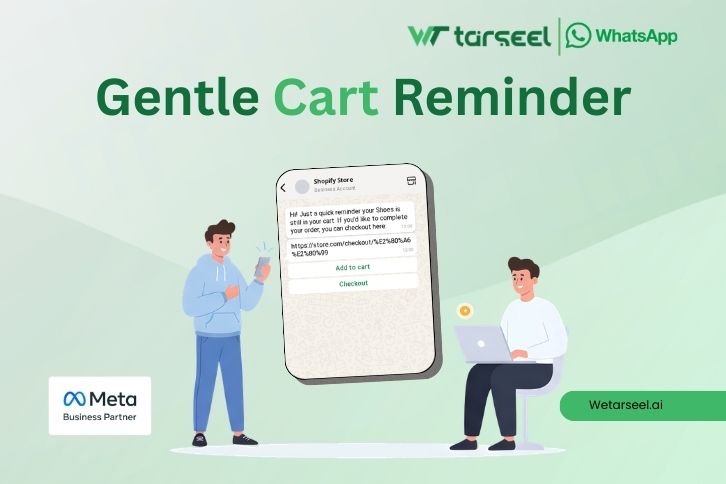
When to send: 30–60 minutes after abandonment
Polite and non-pushy
Reminds without pressure
Offers support, not just a link
Template 2: Cart Reminder With Incentive
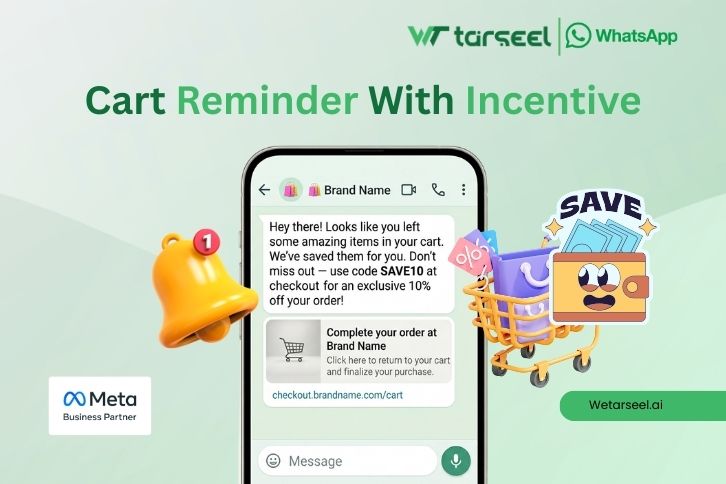
When to send: 12–24 hours later (if no purchase)
Best practice:
Use discounts carefully. Overuse can train customers to wait for offers.
2. WhatsApp Order Confirmation Message Templates
Order confirmation messages reduce anxiety and build trust, especially for first-time buyers.
Template 3: Order Confirmation
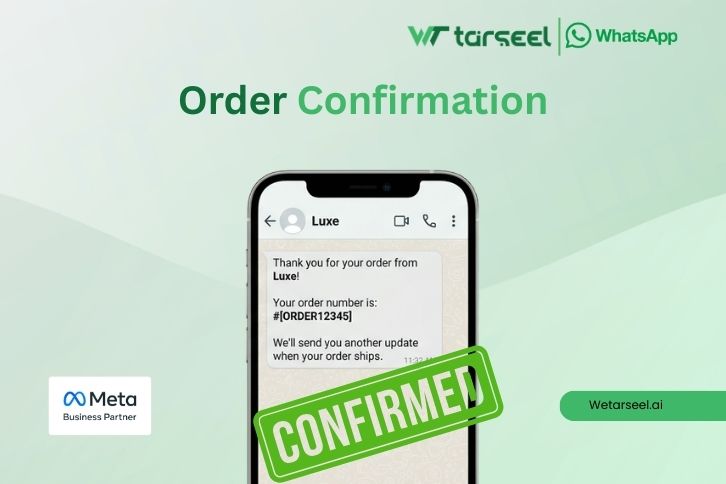
Why this matters:
Customers want immediate reassurance that their payment was successful.
3. Shipping & Delivery Update WhatsApp Templates
Shipping updates reduce “Where is my order?” support requests.
Template 4: Order Shipped
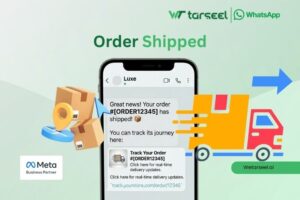
Example: Good news, {{customer_name}}! Your order #{{order_number}} has been shipped. Track your order here: {{tracking_link}}
Template 5: Out for Delivery
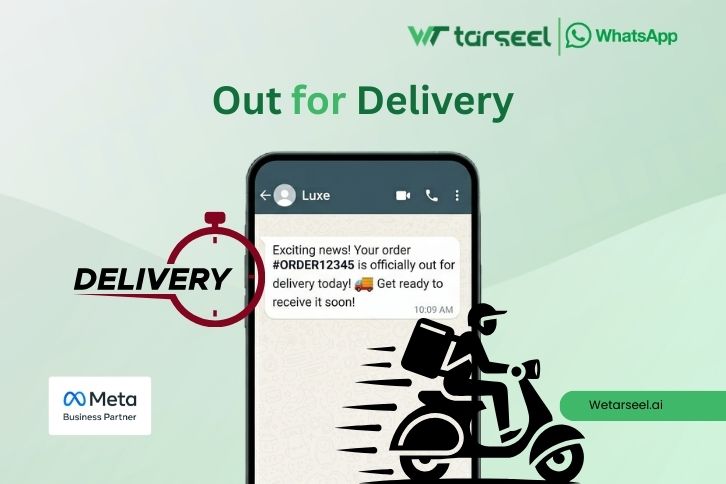
Example: Hi {{customer_name}}, Your order #{{order_number}} is out for delivery today. Thank you for shopping with {{store_name}}!
Real impact:
Stores that send proactive delivery updates often see lower refund requests and fewer support tickets.
4. Delivery Confirmation WhatsApp Message Templates
Once delivery is completed, a simple confirmation helps close the loop.
Template 6: Delivered Successfully
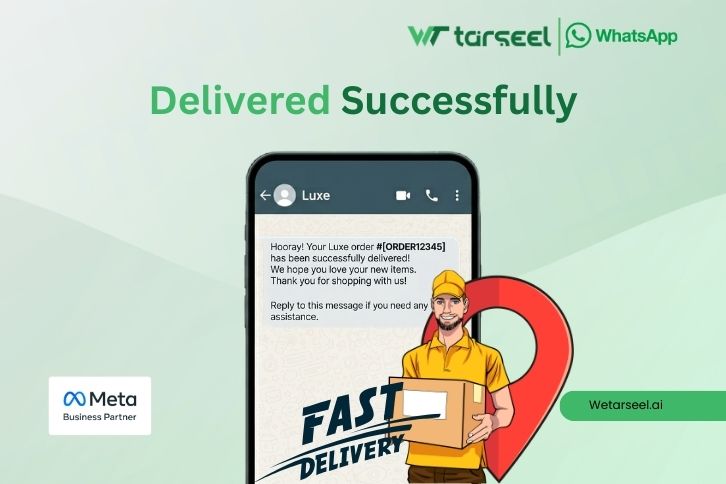
Example: Hi {{customer_name}}, Your order #{{order_number}} has been delivered. We hope you enjoy your purchase! If you need help, reply to this message.
5. Feedback & Review Request WhatsApp Templates
Customer reviews are critical for Shopify stores, but many customers forget to leave them.
Template 7: Review Request
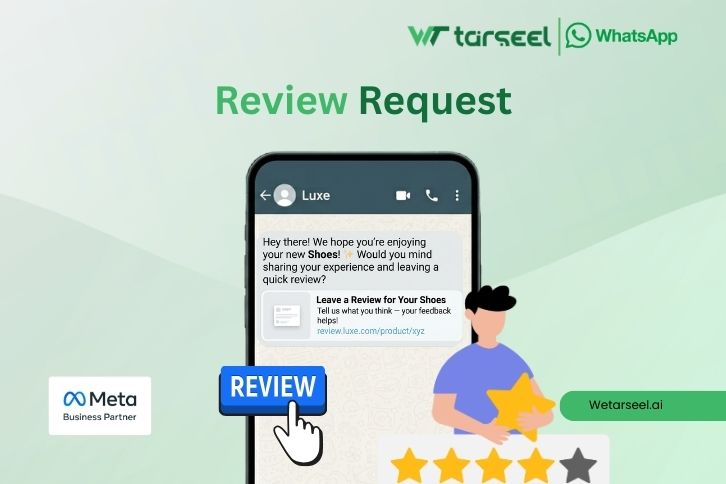
When to send: 2–3 days after delivery
Example: Hi {{customer_name}}, We hope you’re enjoying {{product_name}}. Could you share a quick review? Your feedback helps other customers: {{review_link}}
Why WhatsApp works here:
It feels like a personal request, not an automated email.
6. Customer Support & Assistance Templates
WhatsApp is also powerful for post-purchase support.
Template 8: Support Check-In
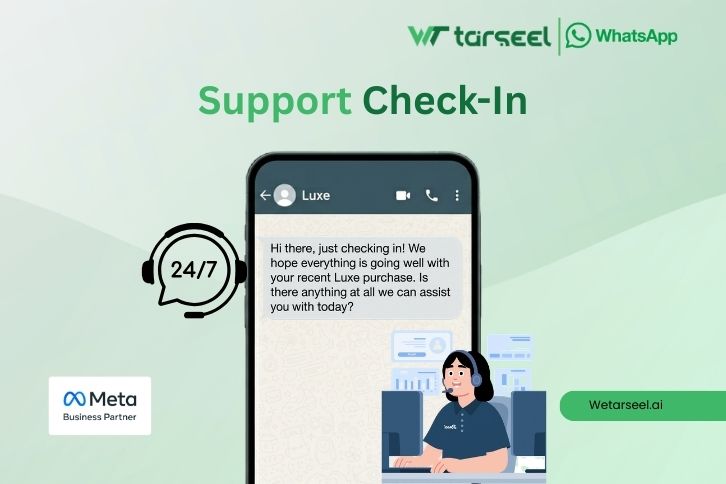
Example: Hello {{customer_name}}, Just checking in — do you need any help with your recent order? We’re here if you need us.
This builds long-term trust and repeat customers.
WhatsApp Marketing Templates for Shopify (Use Carefully)
Promotional messages should be limited and relevant. Here are some examples;
Template 9: New Product Launch
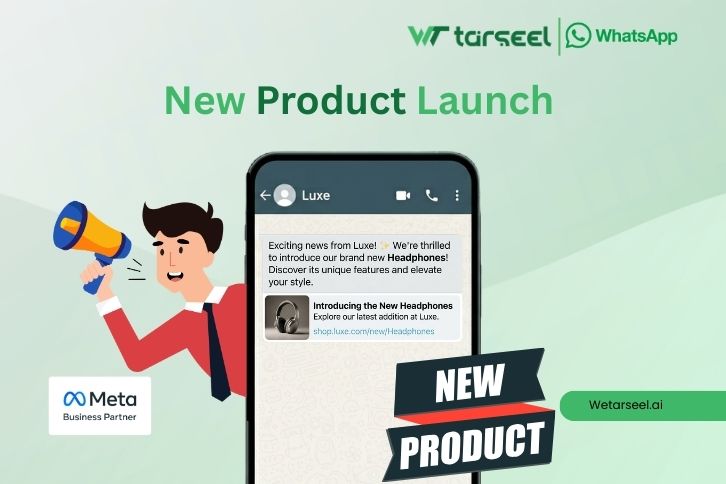
Example: Hi {{customer_name}}, We’ve just launched a new product we think you’ll love. Take a look here: {{product_link}}
Template 10: Festival or Seasonal Offer
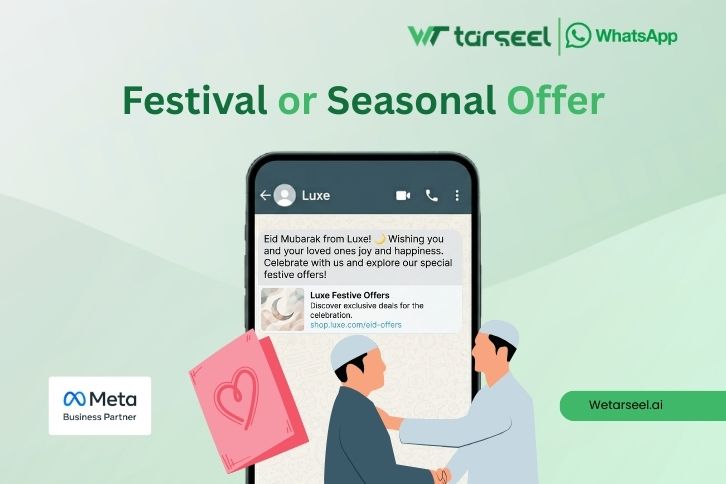
Example: Eid Mubarak from {{store_name}} 🌙 Enjoy a special offer just for you: {{offer_link}}
Important:
Promotional messages should only be sent to users who have clearly opted in.
WhatsApp Best Practices for Shopify Stores (Very Important)
To stay compliant and effective:
Always collect clear customer opt-in
Send messages that match the customer’s action
Avoid sending too many promotional messages
Include your brand name in every message
Make it easy for customers to stop messages
According to Meta’s WhatsApp Business guidelines, businesses must use approved message templates and avoid spam-like behavior. This protects both your brand and your customers.
How Shopify Stores Send These Messages (High-Level Setup)
Most Shopify stores use:
WhatsApp Business API (via approved providers)
Automated triggers from Shopify (cart, order, delivery)
Pre-approved templates from Meta
Typical setup flow:
Verify your WhatsApp Business account
Create and approve message templates
Connect Shopify events (orders, carts, shipping)
Test messages before going live
Final Thoughts
WhatsApp message templates for Shopify stores are not about spamming customers.
They are about helpful, timely communication.
When used correctly, WhatsApp:
Improves customer experience
Builds trust
Recovers lost sales
Reduces support workload
Start with essential messages (cart, order, delivery), then expand carefully.