Quick Summary 

  • Migrating a WhatsApp number to Cloud API normally requires deleting the existing WhatsApp account first.
  • Your chat history is lost unless you use Business App Number Onboarding via a supported provider.
  • Not every provider or region supports coexistence; if not supported, deletion is mandatory.
  • After direct migration, the number can only be used with Cloud API, not with the WhatsApp Business App.

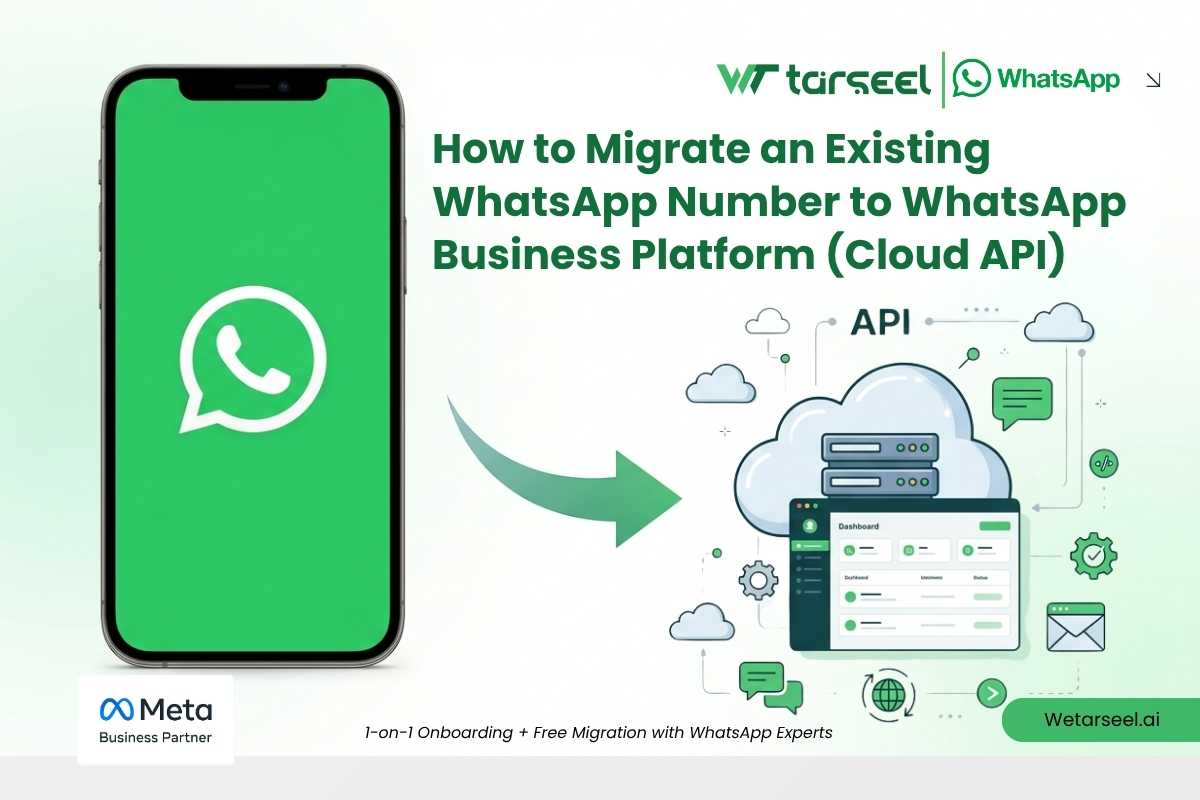
Migrating your current WhatsApp number to the WhatsApp Business Platform (Cloud API) lets you automate conversations, integrate CRM systems, run chatbots, and manage customer messaging at scale.
However, moving an existing WhatsApp Messenger or Business App number to the Cloud API has important conditions and irreversible effects.

This guide covers every approved migration method according to Meta’s official documentation and current platform rules.

Table of Contents

Important Things You Must Know Before Starting

Meta allows you to migrate a phone number currently used on:

  • WhatsApp Messenger, or
  • WhatsApp Business App

But the way you migrate, and whether you lose chat history, depends on how you choose to onboard.

There are now two official migration methods:

Migration Method 1: Delete the Existing Account (Direct Method)

When to use this method

Use this if:

  • Your number is onboarded and connected on Whataspp Business App

What happens with this method

  • You must delete the WhatsApp account tied to the phone number.

  • After deletion, the number becomes available for Cloud API setup.

  • All chat history is permanently lost.

  • After migrating, the number cannot be used in WhatsApp Messenger or the Business App unless you later deregister it from Cloud API.

Steps

1. Back up your chats (optional but recommended)

If you are using the Business App:

Android: Settings → Chats → Chat Backup
iPhone: Settings → Chats → Chat Backup → Back Up Now

Important: Backup cannot be restored after migration.
It is only useful if you return to the Business App later.

2. Delete the WhatsApp Account

  1. Open WhatsApp (Messenger or Business App)

  2. Go to Settings → Account

  3. Tap Delete My Account

  4. Confirm deletion

53231721 413403332756635 1839237629032267776 n.png? nc cat=105&ccb=1 7& nc sid=e280be& nc eui2=AeETU43r1ixNe5GI8a0QQjDDjPcLGhgw1z M9wsaGDDXP7jqHZlluyK2T 7s G gYHk& nc ohc=tQfb3r1Vu9sQ7kNvwE3uJj7& nc oc=AdoLC8C I1ShQ QUN6dSn5ZSw4lFP jOhT0SGpVaDkW9CY2kP3FimP3IPoj62mK7Tjk& nc zt=14& nc ht=scontent.fkhi21 1
 
53231721 413403332756635 1839237629032267776 n.png? nc cat=105&ccb=1 7& nc sid=e280be& nc eui2=AeETU43r1ixNe5GI8a0QQjDDjPcLGhgw1z M9wsaGDDXP7jqHZlluyK2T 7s G gYHk& nc ohc=tQfb3r1Vu9sQ7kNvwE3uJj7& nc oc=AdoLC8C I1ShQ QUN6dSn5ZSw4lFP jOhT0SGpVaDkW9CY2kP3FimP3IPoj62mK7Tjk& nc zt=14& nc ht=scontent.fkhi21 1
53128269 407915336420893 2688327795590823936 n.png? nc cat=108&ccb=1 7& nc sid=e280be& nc eui2=AeEXTn0teRWYeL2sf ev0q0 GV9jVnALSt8ZX2NWcAtK3zDQv3b6ZxZNUHzUqQ9RpJY& nc ohc=j 9ArMJt 1kQ7kNvwH0Clay& nc oc=AdqjOWnAaZSWEfPCsHu2wYJ36Sw1tpdI2RDJmxfCb6 xuvCfrBJtgkuT3Ug4SuUXAlI& nc zt=14& nc ht=scontent.fkhi21 1

Meta states the number generally becomes available within ≈3 minutes.

3. Register the Number in Cloud API

  1. follow the steps mentioned in document 

    How to Apply for WhatsApp Business API: A Step-by-Step Guide – Wetarseel AI

Your number is now officially in a WhatsApp Business Account (WABA) and connected to Cloud API.
Migration Method 2: Business App Number Onboarding (No Deletion Required Co-existence)

  • Supported directly by Meta (2025–2026+)
  • Available only via solution providers who support it
  • Allows Business App + Cloud API to coexist
  • Chat history is preserved

This method is newer and allows some businesses to keep using the WhatsApp Business App while also activating the Cloud API, without deleting the account.

Meta calls this:
This feature is sometimes referred to as “Coexistence”

When to use this method

Use this if:

  • You currently use the WhatsApp Business App, and

  • You want to keep your chat history, and

  • You work with a Meta-supported solution provider that explicitly supports Business App number onboarding.

Important: This method is not available directly through Cloud API.
It must be done through a provider whose platform like wetarseel.ai includes this onboarding flow.

What happens with this method

  • You do not delete your Business App account.

  • Your chat history is preserved inside the Business App.

  • Your number becomes available for use in the provider’s Cloud API connection.

You may continue using:

  • The WhatsApp Business App, and
  • The provider’s API-based platform
    at the same time

This is the safest method for businesses who want continuity and do not want to lose conversations.

Choosing the Right Migration Method

Your Current AppWant to Keep Chat History?Provider With Coexistence?Correct Method
WhatsApp MessengerNot possibleDoesn’t matterDelete Account → Migrate
WhatsApp Business AppYesYesBusiness App Number Onboarding- Coexistence
WhatsApp Business AppYesNoNot possible → Must delete account
WhatsApp Business AppNoNot neededDelete Account → Migrate

What You Cannot Do After Migrating

Once your number is registered with Cloud API (direct method):

  • You cannot use WhatsApp Messenger with that number
  • You cannot use the WhatsApp Business App with that number
  • You cannot restore chat history

The Cloud API number becomes exclusive to Cloud API unless deregistered later.

What You Can Expect After Migration

Benefits

  • API-based messaging
  • Automation, chatbots, and CRM integrations
  • Multi-agent inbox solutions
  • High-volume template messaging
  • Official WhatsApp Business features through API partners

Limitations

  • Cloud API cannot function as a regular WhatsApp app
  • Voice calls, status, stories, and similar consumer features are not supported
  • The Business App cannot be used unless onboarding was done via the supported coexistence method