About 7 in 10 online shopping carts are abandoned. That is the average across 50 studies: 70.22%, according to the Baymard Institute.
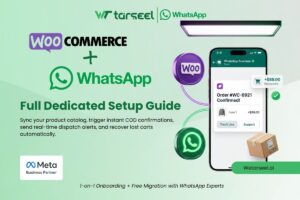
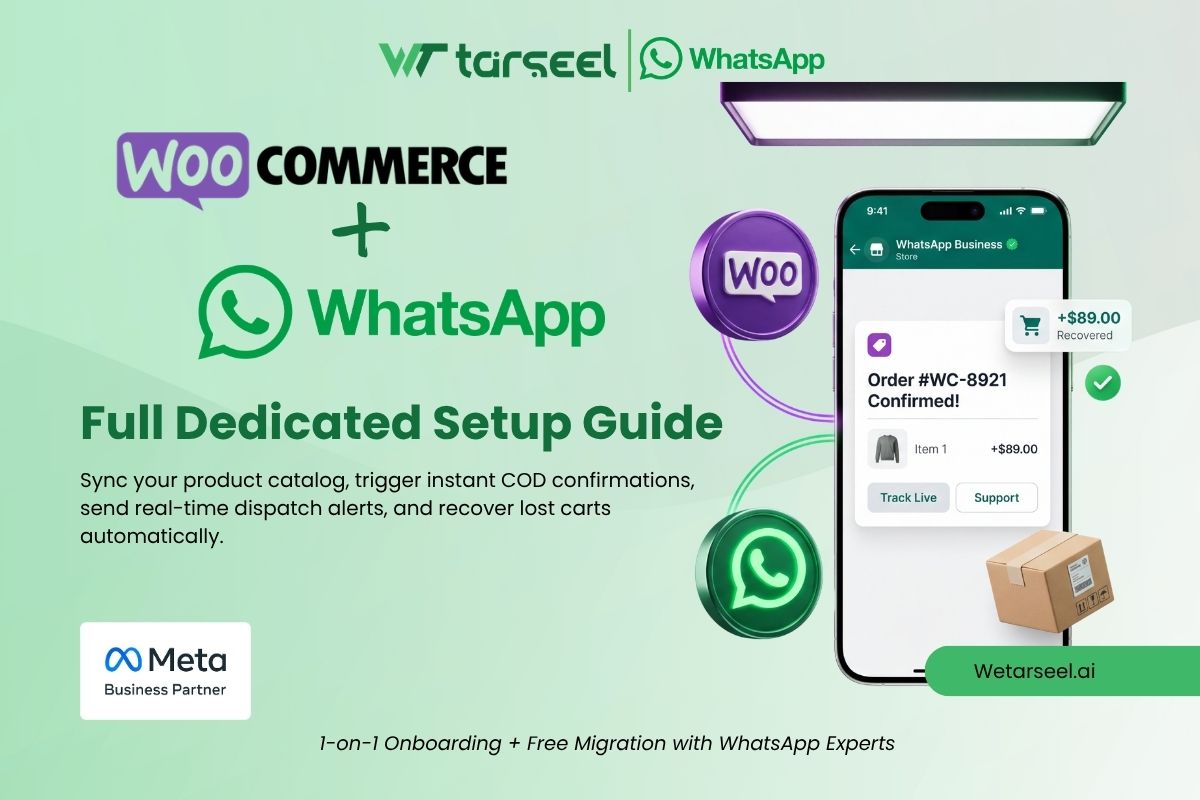
WooCommerce WhatsApp integration is one way to follow up on those carts. It also keeps paying customers informed after checkout.
This guide shows the full setup, from API access to your first automated order message.
Quick answer
WooCommerce WhatsApp integration connects your store to the WhatsApp Business API. When an order event happens, WooCommerce sends the data out. Your WhatsApp platform then sends a pre-approved template message to the customer.
Table of Contents
Want the bigger picture first? Read our complete guide to WhatsApp integration with Shopify and WooCommerce. It explains the Business App vs API difference and why templates are required. It also shows how store events trigger messages, and it includes the Shopify setup steps.
How to set up WooCommerce WhatsApp integration in 8 steps
- Get WhatsApp Business API access.
- Write templates and get them approved.
- Collect phone numbers and opt-in at checkout.
- Create WooCommerce REST API keys.
- Connect WooCommerce with a webhook or n8n.
- Send template messages through your provider’s API.
- Match order statuses to messages.
- Add abandoned cart recovery, then test.
What is WooCommerce WhatsApp integration?
It is a link between your store and WhatsApp. A store event triggers a WhatsApp message with no manual work.
Common triggers:
- A new order is placed
- A payment is confirmed
- An order is shipped, cancelled or refunded
- A cart is abandoned
You need the WhatsApp Business API for this. The free WhatsApp Business App cannot automate store messages.
What do you need before you start?
You need seven things. Check this list first to save hours later.
| Requirement | Why it matters |
|---|---|
| WooCommerce admin access | You will create API keys and webhooks |
| Store on HTTPS | Safer delivery of order data |
| Meta Business portfolio | Needed for WhatsApp Business API access |
| A phone number for WhatsApp | Customers will see this number |
| A WhatsApp API platform account | Sends the messages. Create a Wetarseel account here |
| Customer phone numbers at checkout | No number means no message |
| Customer opt-in | Required by WhatsApp policy |
Phone number tip
Many guides say the number must be new to WhatsApp. Ask your provider if coexistence is available. It lets you use one number in both the app and the API. Here is Wetarseel’s page on coexistence.
Plugin, no-code tool or direct API: which should you choose?
You have three ways to connect WooCommerce to WhatsApp.
| Path | Best for | Skill needed |
|---|---|---|
| WooCommerce WhatsApp plugin | Quick start, simple alerts | Low |
| No-code or low-code tool (like n8n) | Custom flows without a full build | Medium |
| Direct webhook to the API | Full control and custom logic | Developer |
Wetarseel works through its REST API and webhooks. Its n8n guide uses n8n’s HTTP Request node, because Wetarseel has no dedicated n8n node yet. Read the Wetarseel n8n guide for that route.
Be realistic: Wetarseel’s FAQ says some technical skill is needed for API work, such as REST APIs, JSON and webhooks. No developer? A plugin or a freelancer can help.
How to judge a WooCommerce WhatsApp plugin
Plugins vary a lot. Before you install one, ask:
- Does it use the official WhatsApp Business API? Read why this matters in our guide on official vs unofficial WhatsApp tools.
- Can it send your approved templates?
- Can you pick which order statuses send a message?
- Does it handle opt-in and opt-out?
- Does it say it works with HPOS (WooCommerce’s custom order tables)?
- Does it keep clear send logs?
- Is it updated often?
Step 1: Get WhatsApp Business API access
You need a Meta Business portfolio, a phone number and an API platform.
- Create or open your Meta Business portfolio.
- Pick the phone number for WhatsApp.
- Sign up with your API platform and link the number.
Your account starts small. A new business portfolio can message 250 unique people per day outside the 24-hour service window.
You can raise that limit. Verify your business, or send 2,000 delivered template messages to unique users in 30 days with high-quality templates. That lifts you to 2,000. After that, Meta raises the limit automatically if your message quality is high and you used at least half your limit in the last 7 days. See Meta’s messaging limits page.
Why this matters
A big cart-recovery campaign on day one may hit the cap. Start small and keep quality high.
Step 2: Create templates and get them approved
Every business-started WhatsApp message needs an approved template. Meta sorts templates into marketing, utility and authentication. The type changes how Meta reviews and prices the message.
A utility template must have no promotion in it. It must also relate to the user’s order, account or transaction. Order confirmations and shipping updates fit here.
Meta counts mixed utility and marketing content as marketing. It also treats an abandoned-cart reminder as marketing. See Meta’s template categorization rules.
Three templates you can adapt:
Hi {{1}}, thanks for your order #{{2}}. We have received it and are getting it ready. We will message you when it ships.
Hi {{1}}, your order #{{2}} is on its way. Track it here: {{3}}
Hi {{1}}, you left {{2}} in your cart. We saved it for you: {{3}}
Do not hide a promo in a utility template
Since April 9, 2025, a template you submit as utility is approved as marketing if Meta decides it is marketing. Repeated misuse can bring warnings and restrictions.
Step 3: Collect phone numbers and opt-in at checkout
Customers must agree to receive your WhatsApp messages. Meta requires opt-in before you message people on WhatsApp. The opt-in can be general, if you follow local laws.
Meta also advises separate opt-in by message type, clear opt-out steps, and honoring opt-out requests. Read Meta’s opt-in guidance.
Practical checkout tips:
- Make the phone field required.
- Ask for the country code, or add a country dropdown.
- Add a tick box such as “Send my order updates on WhatsApp.”
- Use a separate tick box for offers and reminders.
- Save the opt-in choice with the customer record.
Step 4: Create your WooCommerce REST API keys
Some tools, like n8n, need REST API keys to read your order data.
- Go to WooCommerce > Settings > Advanced > REST API.
- Click Add key.
- Name the key and choose a user and permission.
- Copy the Consumer Key and Consumer Secret.
n8n’s setup uses this path and suggests Read/Write permission.
Save the secret right away
WooCommerce shows it only once.
Step 5: Connect WooCommerce with a webhook or n8n
A webhook tells your platform when an order event happens. You have two ways to set one up.
Option A: Use n8n
The WooCommerce Trigger node in n8n registers a webhook in your shop for you. You pick the event and build the next steps on the canvas.
Option B: Create the webhook yourself
Go to WooCommerce > Settings > Advanced > Webhooks. Choose a topic such as Order Created. Add a Delivery URL and a Secret. The first time you save an active webhook, WooCommerce sends a ping to that URL. See the WooCommerce webhook docs.
Two things to know:
- By default, WooCommerce disables a webhook after 5 failed retries. If messages suddenly stop, check this first.
- Webhook logs are under WooCommerce > Status > Logs.
Secure the webhook
When you set a secret, WooCommerce signs each delivery with an HMAC-SHA256 signature in the X-WC-Webhook-Signature header. Check it on your server before you trust the data.
Which event should trigger the message?
The event you pick sets the timing.
New WooCommerce orders start as Pending payment. Processing means payment is received and stock is reduced.
For card payments, an “order created” webhook may fire before the customer pays. So a “your order is confirmed” message could go out too early. A safer plan is to trigger when the status changes to Processing.
Watch for duplicates
The order.updated topic fires whenever any order data changes. Filter by status in your workflow.
Step 6: Send the WhatsApp message through the API
Your workflow must call your provider’s send-message endpoint.
In Wetarseel’s n8n guide, this is a POST request. It goes to https://app.wetarseel.ai/api/v1/send-message with the phone number, template name and parameters in a JSON body.
{
  "to": "971521345678",
  "template_name": "order_confirmation",
  "parameters": ["Sara", "1042"]
}
Map each WooCommerce field to a template variable:
{{1}}= customer first name{{2}}= order number
Safety and format tips from the same guide:
- Store your API key in n8n’s credential store. Never paste it into URL or body fields.
- Use international phone format with the country code. Remove spaces, dashes and brackets.
Always check the latest endpoint and field names in your dashboard first. See also our API reference.
Step 7: Match order statuses to WhatsApp messages
Pick the order steps that deserve a message. Core WooCommerce uses Pending payment, Processing, On hold, Completed, Cancelled, Refunded and Failed. See the WooCommerce order status guide.
| WooCommerce status | Good WhatsApp message | Template type |
|---|---|---|
| Processing | “We got your order and payment” | Utility |
| On hold | “We are waiting to confirm your payment” | Utility |
| Completed | “Your order is fulfilled” (or “shipped,” if that fits your process) | Utility |
| Cancelled | “Your order was cancelled” | Utility |
| Refunded | “Your refund is processed” | Utility |
| Failed | “Your payment did not go through” | Utility |
Keep each message short. Add the order number and one clear next step.
Cash on delivery? Meta’s utility guidance covers messages that confirm, update or cancel an order using order details. A COD confirmation can fit, if it stays free of promotion.
Step 8: Add abandoned cart recovery
WooCommerce needs help here. It has no built-in way to capture abandoned carts. You need a plugin or custom code. That tool must save the shopper’s phone number before they leave.
Your recovery flow needs four parts:
- A cart-capture tool that records phone and cart items.
- A wait time, so you do not message too early.
- A check that the customer has not already bought.
- A marketing template with a link back to the cart.
Remember
A cart reminder is a marketing message. It needs opt-in, and Meta charges for it.
How much does WooCommerce WhatsApp cost?
You pay Meta’s message fees plus your platform fee.
Since July 1, 2025, Meta charges per delivered template message. The rate depends on the template category and the recipient’s country calling code.
| Message type | Charged by Meta? |
|---|---|
| Customer messages you | No (free) |
| Your reply in an open 24-hour window | No (free) |
| Utility template inside an open window | No (free) |
| Utility template outside the window | Yes (charged) |
| Marketing template | Yes (always charged) |
Free-form messages are free inside an open window. The window lasts 24 hours from the customer’s last message.
Meta also gives lower utility and authentication rates as your monthly volume grows. Meta may change prices only on the first day of each quarter. Rates do move. For example, Meta’s pricing page lists a higher UAE marketing rate from October 1, 2025, and higher Pakistan utility and authentication rates from April 1, 2026.
Always check Meta’s live rate card for your customers’ countries. For more detail, read our WhatsApp API pricing guide and our post on session vs template messages.
Test before you go live
Run a full test with a real order. Tick off all eight checks below before you switch on your WooCommerce WhatsApp automation.
- Place a test order with your own numberUse a real order, not a guess.
- Check the webhook is deliveredLook under WooCommerce > Status > Logs.
- Confirm the template is ApprovedOnly approved templates can send.
- Check the country codeUse the full international number.
- Confirm the variables fill inName and order number should show correctly.
- Get one message, not twoChange the order status and filter by status to stop duplicates.
- Test a failed payment and a refundEach status should send the right message.
- Test opt-out handlingOpted-out customers must not get messages.
Common WooCommerce WhatsApp problems and fixes
| Problem | Likely cause | Fix |
|---|---|---|
| No message arrives | Webhook disabled after repeated failures | Check webhook status and logs, then reactivate |
| Message fails | Wrong phone format | Use the full international number |
| Template not found | Name typo or not approved | Check the exact name and status |
| Duplicate messages | Trigger fires on every order update | Filter by status |
| Early “confirmed” message | Trigger fires at Pending payment | Trigger on Processing |
| Higher cost than expected | Template re-labeled as marketing | Remove promo text from utility templates |
| Sends stop at a daily number | Messaging limit reached | Check your limit in WhatsApp Manager |
Frequently Asked Questions (FAQs)
-
Can I connect WooCommerce to WhatsApp without coding?
Partly. A plugin or a tool like n8n reduces the work. You still need Business API access, approved templates and some setup skill.
-
Do I need the WhatsApp Business API for WooCommerce?
Yes, for automated messages. The free Business App does not support store automation.
-
Is WooCommerce WhatsApp automation free?
No. Meta charges for marketing templates, and for utility templates sent outside the 24-hour window. Your platform may charge a fee too.
-
Do I need customer permission first?
Yes. Meta's policy requires opt-in before you message people on WhatsApp.
-
Which order events should I automate first?
Start with Processing (order received), your shipped or completed step, and Refunded. Add cart recovery after that.
-
How many customers can I message at first?
A new business portfolio starts at 250 unique customers per day outside the 24-hour window. Replies inside an open window do not count toward that limit.
Your next step
You now have the full flow: API access, approved templates, opt-in, a webhook or n8n link, API sends, status mapping, cart recovery and testing.
Want the full picture across both platforms? Read our guide to WhatsApp integration with Shopify and WooCommerce.
Ready to build? Start with Wetarseel. Your Integrations page lists a 3-day trial with no credit card.