Here’s a number that should make you stop and think:
WhatsApp messages are widely reported to get opened between 85% and 98% of the time.
Email? It struggles to cross 20–25% on a good day.
That gap is huge — and even the more conservative, independently measured estimates for opt-in WhatsApp broadcasts (closer to 65–70%) still leave email far behind. But here’s the catch nobody tells you: a high open rate does not mean a high conversion rate.
Most businesses get their WhatsApp template approved by Meta and stop there. They treat the template like a formality — something to tick off — instead of a sales tool. The result? People open the message, read one line, and close it. No click. No reply. No sale.
This guide fixes that. You will learn how to write high-converting WhatsApp templates that people actually act on — not just open. We will use real, working copy examples for the most common business use cases: cart recovery, order updates, promotions, reminders, and more.
If you are still setting up your very first template, or you keep getting confused by approval rules, pause here and read our complete WhatsApp Template Message Guide first. That guide covers formatting rules, rejection reasons, and step-by-step template creation. This article picks up from there and focuses on one thing only: making your templates convert.
Quick answer:
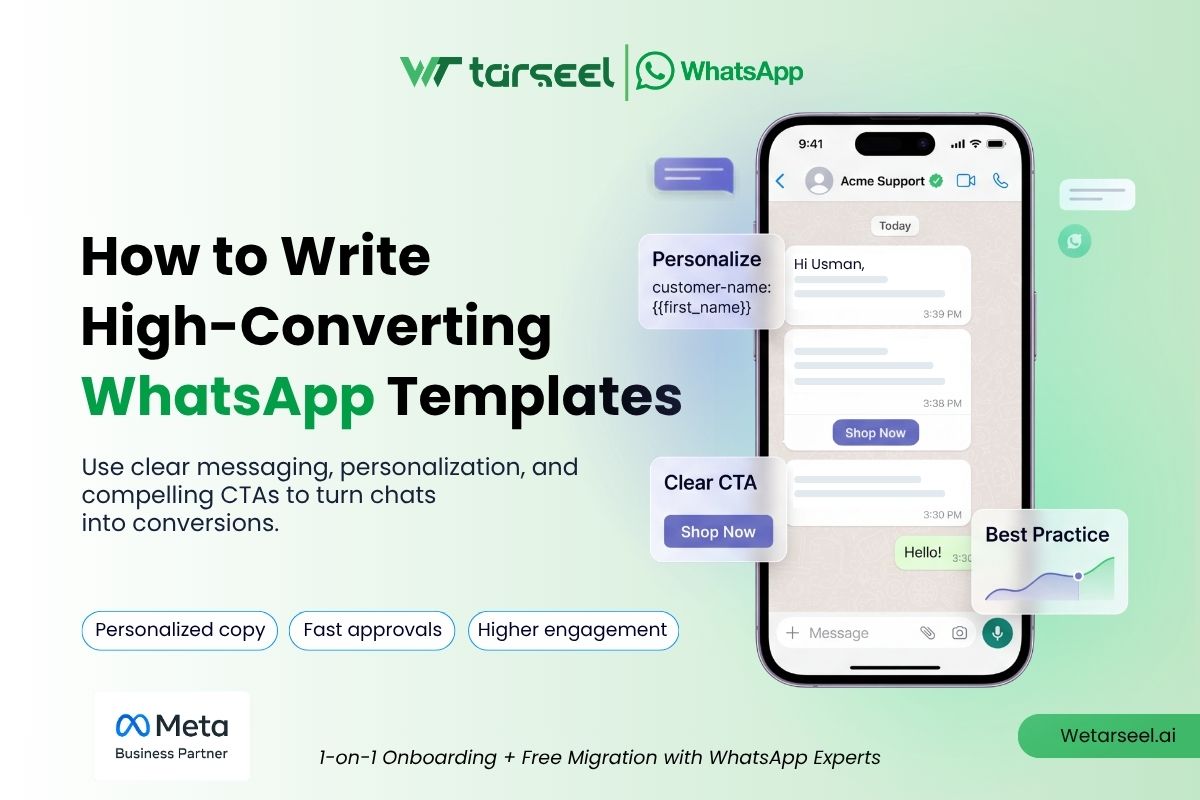
A high-converting WhatsApp template personalizes the first line, states one clear benefit fast, uses short sentences, includes exactly one call-to-action button, and matches its tone to its category (Utility, Marketing, or Authentication). Templates that try to do too much in one message almost always convert worse than short, focused ones.
Table of Contents
Why WhatsApp Templates Convert Better Than Email or SMS (When Written Right)
Let’s look at why this channel is worth the effort in the first place.
- Open rates: WhatsApp’s open rate is one of the most repeated stats in digital marketing, usually cited between 85% and 98%. Worth knowing as a savvy marketer: that exact figure is hard to trace to one rigorous, primary source — some independently measured benchmarks for opt-in broadcast campaigns land closer to 65–70%. Either way, it comfortably beats email’s well-documented 20–25%.
- Click-through rates: Multiple independent industry reports put WhatsApp’s click-through rate for marketing messages somewhere in the 40–60% range, against roughly 2–5% for email — largely because WhatsApp messages support tappable buttons instead of a plain link buried in a paragraph.
- Speed of reading: Because WhatsApp lives on the same screen as personal chats, most business messages get read within minutes of arriving — not hours or days later like email.
But speed and visibility only get you halfway. Meta only lets businesses send pre-approved template messages once the 24-hour customer service window closes. That means every template has to work hard the moment it lands, because you usually don’t get a second try in the same conversation.
This is also why Meta changed how it charges for these messages. Since July 1, 2025, Meta bills Marketing and Utility template messages per delivered message instead of per 24-hour conversation, with rates that vary by category and by country. There’s an important nuance here that a lot of guides skip: Utility templates sent inside an already-open 24-hour customer service window are still free — the per-message charge mainly applies outside that window. Marketing templates, on the other hand, are charged per message with no such exception. In plain English: your promotional templates now cost something every single time, whether they convert or not. A template that doesn’t convert isn’t just a missed opportunity — it’s money spent for nothing.
That’s the real reason this guide exists. Let’s build templates that earn their cost.
First, a 60-Second Refresher: The 3 Template Categories
Before you write a single word, you need to know which “bucket” your message falls into. Meta sorts every template into one of three categories, and the category affects tone, cost, and what you’re allowed to say.
| Category | What it’s for | Example | Tone to use |
|---|---|---|---|
| Utility | Messages tied to something the customer already did or agreed to | Order confirmation, shipping update, appointment reminder | Clear, factual, helpful |
| Marketing | Anything promotional or meant to start new engagement | Discount offers, product launches, re-engagement | Persuasive but honest |
| Authentication | One-time passwords and login codes | OTP for account verification | Fixed format, no persuasion needed |
Here’s a mistake we see constantly: businesses write promotional language inside a Utility template to try and pay the lower rate. Meta’s systems actively scan for this. If your “order confirmation” template sneaks in “and here’s 20% off your next order,” WhatsApp can reclassify it as Marketing automatically — and you lose the approval you already had.
Keep categories honest. It protects your approval rate and your wallet.
Good to know: Templates aren’t the only category Meta tracks. Free-form replies you send inside an open 24-hour service window are billed as a separate “Service” bucket and don’t need pre-approval at all. Also worth flagging: Meta paused delivery of Marketing-category templates to US (+1) phone numbers back on April 1, 2025, and as of the most recent reporting this pause is still active with no end date announced — Utility and Authentication templates to US numbers are unaffected. A blocked send typically comes back with an error like USER_MARKETING_TEMPLATE_LIMIT or code 131049. If US customers are a big part of your list, verify the current status in your own WhatsApp Manager before building a campaign around them, since Meta could lift this at any time without much notice.
Keep categories honest. It protects your approval rate and your wallet.
For the full breakdown of formatting rules, rejection reasons, and how to submit templates step-by-step, our WhatsApp Template Message Guide walks through the entire process.
The Anatomy of a High-Converting Template
Every WhatsApp template is built from the same building blocks. Knowing the size limits of each one helps you write tighter, punchier copy instead of padding it with filler.
- Header (optional): Text headers allow up to 60 characters and exactly one variable. You can also use an image, video, or document instead of text.
- Body (required): Up to 1,024 characters, including any variable content once it’s filled in with real data. Worth knowing: on Marketing templates, WhatsApp automatically truncates the body after roughly 5 lines and shows a “Read more” link the customer has to tap — Utility templates don’t get truncated this way. That’s one more reason your best line has to come first, not just for the preview, but for the message itself.
- Footer (optional): Up to 60 characters. No variables allowed here — it’s always static text.
- Buttons (optional): Up to 10 buttons total — that can be up to 10 quick replies, or a mix of up to 2 link buttons and 1 phone-number button. Each label is short (roughly 20–25 characters, depending on button type). This is Meta’s platform maximum, so always confirm what your own template builder shows before designing around it — but having room for 10 buttons doesn’t mean you should use them. See Rule 3 below.
Here’s the part most people miss: just because you have 1,024 characters doesn’t mean you should use them.
Think about how you read WhatsApp messages from your own friends. Short. Scannable. To the point. A wall of text in a business template looks and feels like spam, even if the approval team let it through.
Rule of thumb: if your message needs more than 3–4 short sentences to explain itself, it usually needs a rewrite, not more characters.
7 Copywriting Rules for High-Converting WhatsApp Templates
These are not formatting rules (we cover those in the pillar guide) — these are the actual writing habits that separate a template someone acts on from one they scroll past.
1. Personalize beyond the first name
Yes, {{1}} for the customer’s name is standard. But high-converting templates go further — they personalize the reason for the message.
- Weak: “Hi {{1}}, check out our new offer!”
- Strong: “Hi {{1}}, the sneakers you viewed are back in stock.”
The second version tells the reader why this message exists for them specifically. That single change can be the difference between a delete and a click.
2. Put the value in the first 8–10 words
WhatsApp shows a message preview before the customer even opens the chat. If your value isn’t visible in that preview, you’ve already lost part of your audience. And if you’re writing a Marketing template specifically, remember it gets cut off after about 5 lines with a “Read more” tap required — so the sentence that matters can’t be your third one.
- Weak: “We hope you are doing well. We wanted to reach out to share some exciting news about our latest collection.”
- Strong: “Your size is back — 20% off ends tonight.”
3. One message, one goal, one button
Meta allows up to 10 buttons on a single template, but that’s a technical ceiling, not a target. Templates that ask for two things — “click here AND reply YES AND visit our store” — almost always underperform. Pick the single action that matters most and design the whole message around it. In practice, the highest-converting templates we’ve seen use exactly one button.
4. Use real urgency, not fake urgency
“Hurry! Offer ends soon!” has been used so often it’s basically wallpaper now — readers scroll past it without registering it. Real urgency uses a specific detail:
- Weak: “Limited time offer, don’t miss out!”
- Strong: “Your cart expires in 2 hours.”
5. Write like you’re texting a person, not broadcasting an ad
Short sentences. Everyday words. No corporate jargon like “leverage,” “synergy,” or “exclusive value proposition.” If you wouldn’t say it to a friend over text, don’t put it in the template.
6. Match tone to category
A Utility message (like a delivery update) should sound calm and informative. A Marketing message can be a little more energetic. Mixing the two — an overly salesy shipping notification, for example — feels jarring and can hurt trust.
7. Always give the reader an easy way out
WhatsApp requires an opt-out option in promotional messages, and honestly, this isn’t just a rule to follow reluctantly — it protects your sender reputation. Customers who feel trapped are far more likely to report your number as spam, which damages your quality rating for every future message. A simple “Reply STOP to unsubscribe” footer, or an unsubscribe/stop-promotions button, keeps your list clean and your quality score healthy.
High-Converting WhatsApp Template Examples (By Use Case)
This is the part you’ll probably bookmark. Below are real, ready-to-adapt template examples for the most common business scenarios — with a quick breakdown of why each one works.
1. Abandoned Cart Recovery (Marketing)
Header: Still thinking it over? Body: Hi {{1}}, your cart is waiting — {{2}} is still available in your size. Complete your order before it sells out. Footer: Reply STOP to unsubscribe. Button: Complete My Order
Why it works: It names the specific product ({{2}}), creates light urgency (“still available,” “before it sells out”), and gives one clear button instead of a generic link.
2. Order Confirmation (Utility)
Header: Order Confirmed Body: Hi {{1}}, your order #{{2}} is confirmed ✅ and will arrive by {{3}}. We’ll notify you the moment it ships. Footer: Thanks for shopping with us! Button: Track My Order
Why it works: No promotional language, no upsell — just clear, useful facts. This keeps it correctly classified as Utility and builds trust at a moment when the customer is paying close attention.
3. Shipping / Delivery Update (Utility)
Header: Your Package Is on the Way Body: Hi {{1}}, order #{{2}} has left our warehouse and should reach you by {{3}}. Track it live below. Button: Track Shipment
Why it works: It answers the one question the customer actually has right now — “where’s my order?” — without wasting their time.
4. Appointment or Booking Reminder (Utility)
Body: Hi {{1}}, this is a reminder for your appointment on {{2}} at {{3}}. Reply CONFIRM to keep it, or RESCHEDULE if you need a new time. Buttons: Confirm | Reschedule
Why it works: Two quick-reply buttons remove all friction. The customer doesn’t have to type a full sentence back — just tap.
5. Flash Sale / Promotional Offer (Marketing)
Header: 24 Hours Only Body: Hi {{1}}, get {{2}}% off everything in your cart — but only until midnight tonight. No code needed, it’s already applied. Footer: Reply STOP to unsubscribe. Button: Shop the Sale
Why it works: Specific discount, specific deadline, and it removes a common purchase barrier upfront (“no code needed”). Fewer steps between message and purchase means higher conversion.
6. Win-Back / Re-engagement (Marketing)
Body: Hi {{1}}, we’ve missed you! It’s been a while since your last order, so here’s {{2}}% off to welcome you back — valid for the next 7 days. Footer: Reply STOP to unsubscribe. Button: Claim My Discount
Why it works: It acknowledges the gap honestly instead of pretending it doesn’t exist, then immediately gives a reason to come back with a clear deadline.
7. Review or Feedback Request (Marketing or Utility, depending on framing)
Body: Hi {{1}}, how was your recent order? Your feedback takes 30 seconds and helps us improve. Buttons: Leave a Review | Not Now
Why it works: “30 seconds” sets a realistic, low-effort expectation. The “Not Now” button respects the customer’s time and reduces the odds they mark the message as spam out of frustration.
8. Event or Webinar Invite (Marketing)
Header: You’re Invited Body: Hi {{1}}, join our free live session on {{2}} at {{3}}. Seats are limited, so reserve yours now. Footer: Reply STOP to unsubscribe. Button: Reserve My Seat
Why it works: “Free” and “limited” work together honestly here — as long as seats genuinely are limited. Never manufacture scarcity that doesn’t exist; customers notice, and Meta’s quality systems can flag repetitive fake-urgency patterns over time.
9. Payment or Renewal Reminder (Utility)
Body: Hi {{1}}, your subscription renews on {{2}} for {{3}}. No action needed if everything looks right. Button: Manage Subscription
Why it works: Notice there’s no threat or pressure language here — WhatsApp’s policies specifically reject templates that sound threatening, such as tying a deadline to legal action or another consequence. This version stays calm, factual, and still gives the customer an easy way to act if they need to.
10. Authentication / OTP (Authentication)
Body: {{1}} is your verification code. For your security, do not share this code with anyone.
Why it works: Authentication templates follow a fixed, Meta-mandated format for good reason — there’s no room for creative copywriting here, and that’s by design. Stick to the standard structure exactly.
Common Mistakes That Quietly Kill Conversion
Some templates get approved by Meta but still fail with customers. Watch out for these:
- Generic greetings with no reason to open. “Hi {{1}}, we have something for you!” tells the reader nothing. Be specific.
- Too many asks in one message. Pick one action per template.
- Ignoring the category-tone mismatch. A Utility message that reads like a hard sell breaks trust fast.
- Sending too often, with no reply. This isn’t just a courtesy issue — Meta actually throttles it. If a customer keeps receiving Marketing templates without ever replying, WhatsApp can automatically stop delivering further marketing messages to that person, regardless of your own sending limit. Getting a reply (even a “STOP”) re-opens things; silence doesn’t.
- Skipping the opt-out. Beyond being a formatting requirement, it’s a trust signal. Customers who feel they can leave anytime are often more comfortable staying.
- Using broken, shortened, or unreachable links. Meta’s policy now requires working HTTPS URLs in template bodies and buttons, and rejects shorteners like bit.ly outright.
- Forgetting mobile reading behavior. Most people read WhatsApp one-handed, in short bursts, often while doing something else. Long paragraphs lose them immediately.
For a full list of the specific reasons WhatsApp rejects templates outright — like data-collection requests, incorrect language selection, or shortened URLs — see the WhatsApp Template Message Guide.
How to Test and Improve Template Performance Over Time
Writing a good template isn’t a one-time task. Here’s how experienced marketers keep improving conversion over time:
- Create two versions of the same template with different opening lines, and split your audience to see which one gets more clicks or replies.
- Watch your quality rating closely. Meta ties your daily sending limits to how customers respond to your messages. New numbers start at a 250-conversation daily tier, then move up through 2,000, 10,000, and 100,000, toward unlimited, as your quality rating and engagement history hold up. Send poorly and that ladder stops climbing — or drops back down.
- Track button clicks, not just delivery. A strong open rate means nothing if nobody taps the button. That’s the number that tells you if your copy is actually working.
- Retire templates that go stale. Even a great template loses its edge after repeated use. Rotate your best-performing patterns instead of running the same message for months.
- Read customer replies, not just metrics. If people are replying with confusion (“what is this?” or “who is this?”), that’s a clear sign your opening line needs work — no dashboard will tell you that as clearly as the actual conversation will.
Frequently Asked Questions (FAQs)
-
What makes a WhatsApp template "high-converting"?
A high-converting template personalizes the message beyond just the customer's name, states its value in the first line, includes one clear call-to-action, and matches its tone to its category (Utility, Marketing, or Authentication).
-
How long should a WhatsApp marketing template be?
Shorter is almost always better. While Meta allows up to 1,024 characters in the body, Marketing templates get visually truncated after about 5 lines with a "Read more" tap required — so aim for 2–4 short sentences that make sense even if nothing after them gets read.
-
Can I use emojis in WhatsApp templates?
Yes, in the body and footer text — used sparingly, they can help the message feel more human. Text headers are plain text only, so save the emoji for the body instead. Button labels are safest kept plain too, since emoji rendering there is inconsistent across devices and providers.
-
Do WhatsApp templates need a call-to-action button?
They're not always required, but including one clear button (like "Track Order" or "Shop Now") generally converts better than asking customers to type a reply or click a plain text link.
-
Why did my template get approved but still doesn't perform well?
Approval only checks that your template follows Meta's policies — it says nothing about whether the copy is compelling. A template can be perfectly compliant and still be too generic, too long, or poorly timed to convert well.
-
How often should I send WhatsApp marketing templates?
There's no universal number, but sending repeatedly to someone who never replies is the fastest way to trip Meta's own engagement throttling — WhatsApp can pause further marketing templates to an unresponsive contact automatically. Most businesses that see strong long-term results send marketing templates a few times a month, reserving Utility templates for actual transactional moments.
Final Thoughts
Getting a WhatsApp template approved is step one. Getting someone to actually tap the button is the real goal — and that only happens when your copy respects the reader’s time, states its value fast, and asks for exactly one thing.
Start with the examples above, adapt them to your own products and voice, and test relentlessly. And if you haven’t nailed down the approval process yet, our complete WhatsApp Template Message Guide is the best next stop — it covers every formatting rule, rejection reason, and step-by-step setup instruction you’ll need to get your templates live.